Helm chart without Ingress setup
By default, the Camunda Helm chart does not expose the Camunda services externally. So to interact with the Camunda services inside a Kubernetes cluster without Ingress setup, you can use kubectl port-forward to route traffic from your local machine to the cluster. This is useful for quick tests or for development purposes.
You need to keep port-forward running all the time to communicate with the remote cluster.
Accessing workflow engine
To interact with Camunda workflow engine via Zeebe Gateway using a local client/worker from outside the Kubernetes cluster, run kubectl port-forward to the Zeebe cluster as follows:
# gRPC
kubectl port-forward svc/camunda-zeebe-gateway 26500:26500

# REST API
kubectl port-forward svc/camunda-zeebe-gateway 8080:8080
Now, you can connect and execute operations against your new Zeebe cluster. Port 26500 provides gRPC access, and port 8080 provides Orchestration Cluster REST API access.
Accessing the Zeebe cluster directly using kubectl port-forward is recommended for development purposes.
Accessing web applications
To interact with Camunda web applications like Operate, Tasklist, and Optimize, also kubectl port-forward will be used.
To use the web applications without Camunda Identity, you can set global.identity.auth.enabled: false in the values file to disable the authentication mechanism.
Do not disable it if you want to use Web Modeler, as it requires Camunda Identity and Keycloak.
First, port-forward for each application service:
kubectl port-forward svc/camunda-optimize 8083:80

kubectl port-forward svc/camunda-connectors 8086:8080
The Zeebe Gateway port-forward on port 8080 (shown in the workflow engine section above) also serves the Orchestration web interface.
To be able to use Web Modeler, create additional port-forward commands for Web Modeler itself, and if you use Keycloak deployed via the Keycloak Operator, also port-forward the Keycloak service:
kubectl port-forward svc/camunda-web-modeler-webapp 8070:80

kubectl port-forward svc/camunda-web-modeler-websockets 8085:80

# Only if using Keycloak Operator
kubectl port-forward svc/keycloak-service 18080:18080
To use Console, create additional port-forward commands for Console. If you use Keycloak deployed via the Keycloak Operator, also port-forward the Keycloak service:
kubectl port-forward svc/camunda-console 8087:80

# Only if using Keycloak Operator
kubectl port-forward svc/keycloak-service 18080:18080
Finally, you can access each app pointing your browser at:
- Orchestration: http://localhost:8080
- Optimize: http://localhost:8083
- Web Modeler: http://localhost:8070
- Console: http://localhost:8087
Log in to these services using the default first user credentials demo/demo. These defaults come from the Helm chart value orchestration.security.initialization.users (which seeds the demo user with password demo for the orchestration cluster). If you have overridden these values or use a custom identity provider, use the credentials you configured instead.
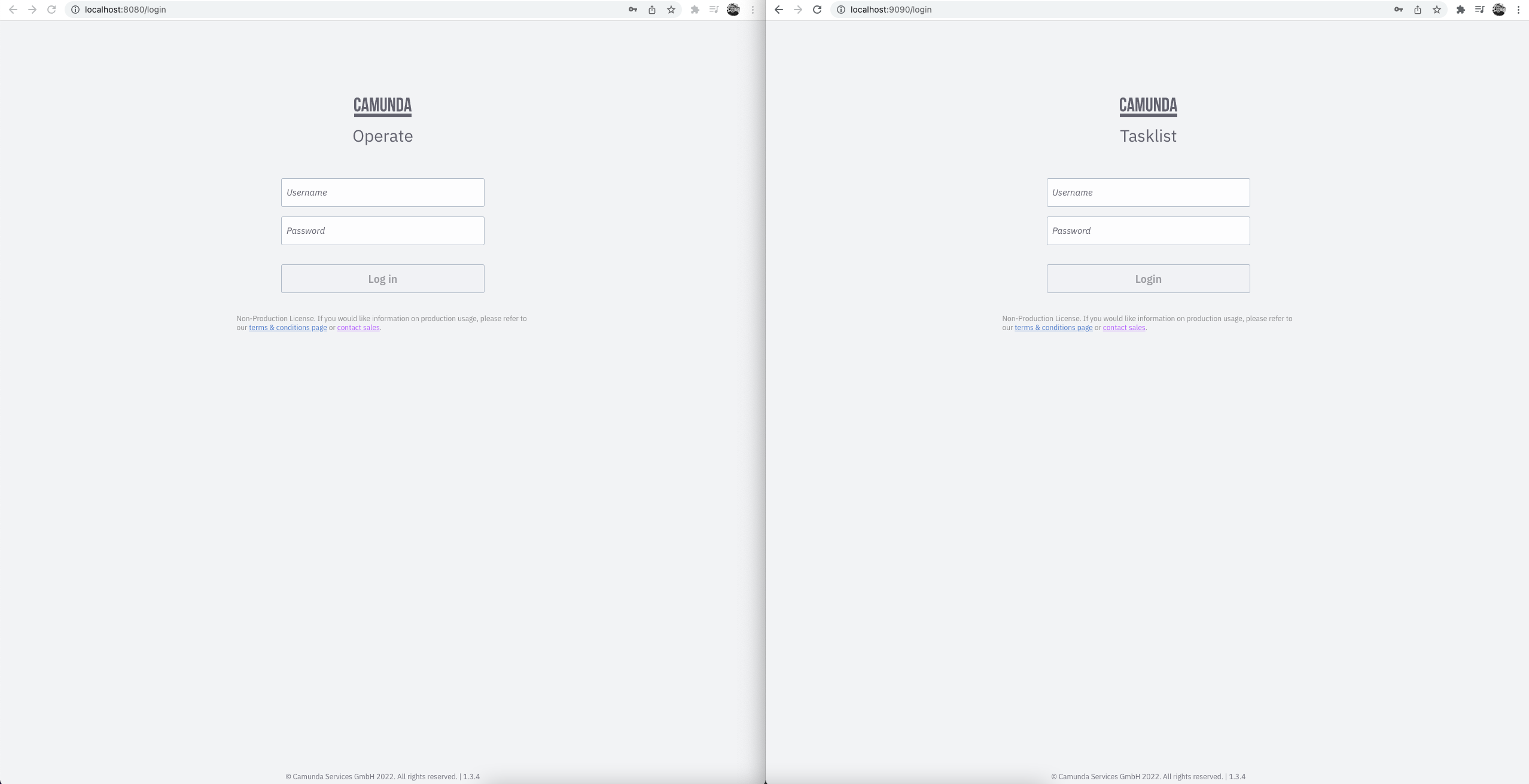
Operate and Tasklist Login
Operate and Tasklist Dashboard
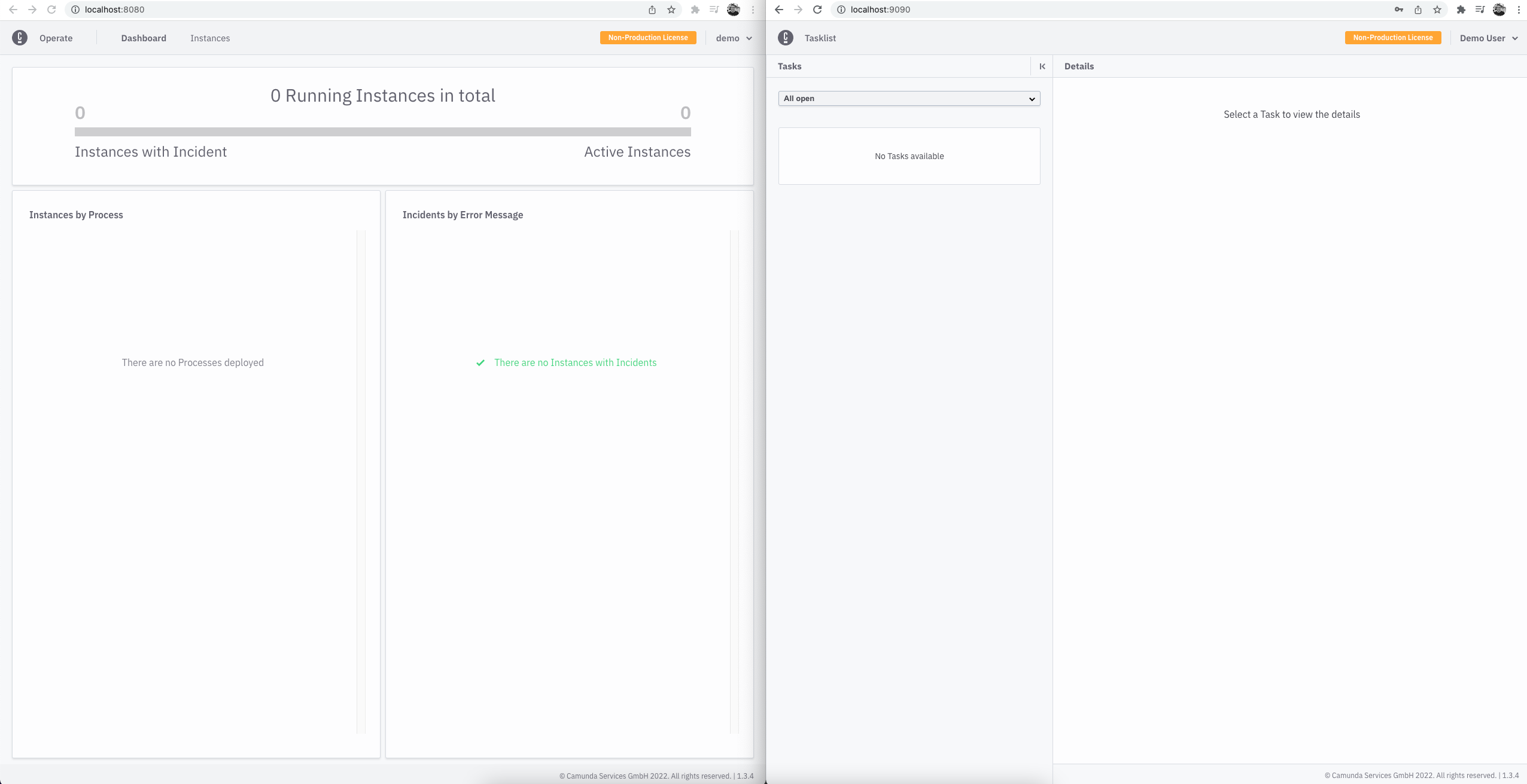
If you deploy process definitions, they will appear in the dashboard. Then, you can drill down to see your active instances.
You can deploy and create new instances using the Zeebe clients.
You can also trigger Connectors inbound webhook, given you deployed one.
You can do so with the following example: curl -X POST -H "Content-Type: application/json" -d '{"myId": 123456, "myMessage": "Hello, world!"}' http://localhost:8086/inbound/<YOUR_WEBHOOK_ID>.