Get started with Management Identity
Get started with Management Identity in Self-Managed by learning how to open and log in to the Management Identity interface.
The following table shows which installation methods start Management Identity and Keycloak. For the Docker Compose files, see choose a Docker Compose configuration.
| Installation method | Starts Management Identity | Starts Keycloak |
|---|---|---|
Docker Compose, full (docker-compose-full.yaml) | Yes | Yes |
Docker Compose, standalone Camunda Hub (docker-compose-hub.yaml) | Yes | Yes |
Docker Compose, lightweight (docker-compose.yaml) | No | No |
| Helm | Yes, when you set identity.enabled: true. The default is false. | No. The chart doesn't deploy Keycloak. Deploy it with the Keycloak operator and connect the Helm chart to it. |
Log in to Management Identity
Once Management Identity has successfully started, you can open the Log in page and log in to Management Identity.
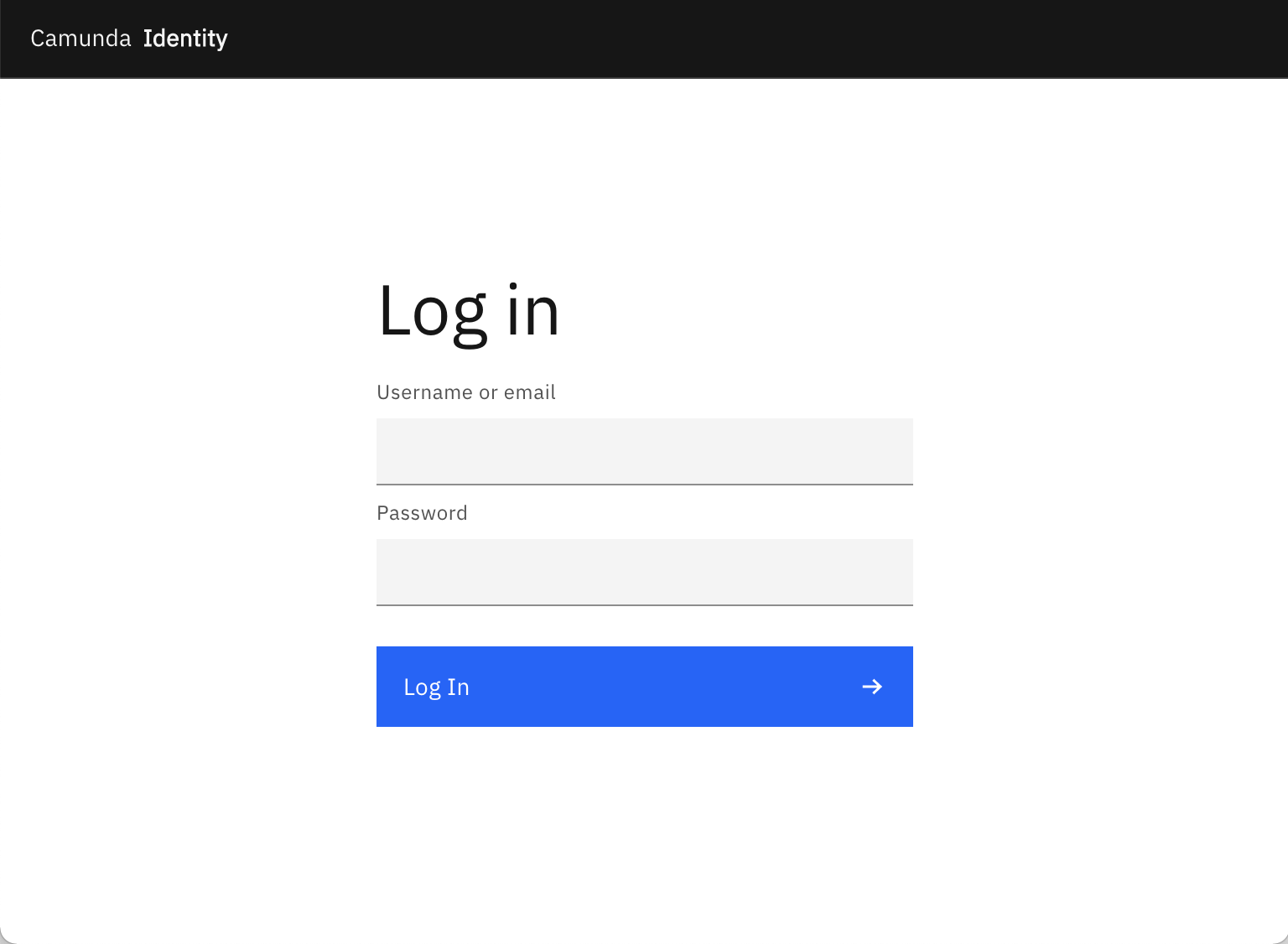
If you are running the default configuration, you can access the Management Identity interface via the following URLs:
- Docker Compose full or standalone configuration:
http://localhost:8084/ - Helm: Follow your
port-forwardor Ingress configuration
Default user
In the default configuration, Management Identity creates a default example user during installation.
You can log in with this example user account using the following credentials:
Username: demo
Password: demo
Management Identity uses the users managed in Keycloak. To create a user, refer to Keycloak's documentation on creating a user for your version of Keycloak.
Management Identity home page
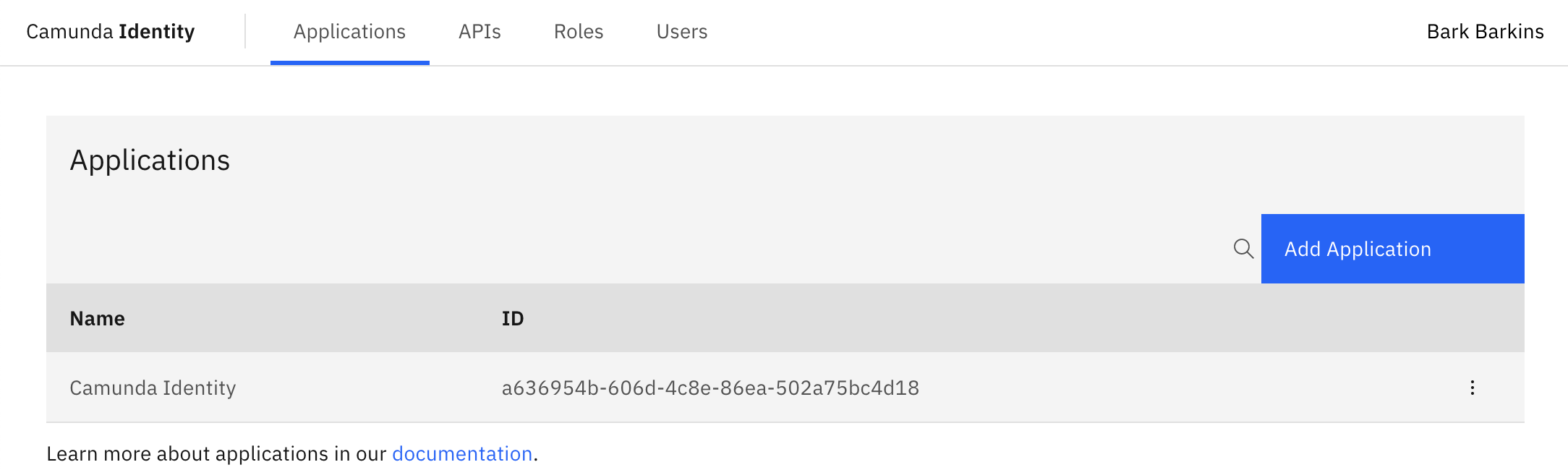
You are directed to the home page once you have successfully logged in.
Next steps
Once you log in to Management Identity, you can start managing authentication, access, and permissions for Camunda Hub and Optimize.
Learn more about how to configure Management Identity and authentication.