Run your first Spring Boot, Node.js, Python, or C# project with Camunda 8
A step-by-step example for Camunda 8 Self-Managed using Spring Boot, Node.js, Python, or C#.
About
This guide is tailored for developers who want to implement process automation solutions using Java (Spring), JavaScript (Node.js), Python, or C#. You'll work with a local, self-managed, lightweight Camunda 8 environment.
Get started with an example project
You will:
- Run Camunda 8 in a local development environment using Camunda 8 Run.
- Use the Desktop Modeler to deploy and start a business process.
- Run workers written in one of:
- The Spring (Java) SDK,
- The Node.js (JavaScript) SDK,
- The Python SDK, or
- The C# SDK
to handle tasks in the process.
Prerequisites
Download the Getting Started Package
Download the Getting Started Package from Camunda Downloads.
The starter package includes the following components:
- Camunda 8 Run – A simplified, single-application Camunda configuration for a local development environment.
- Desktop Modeler – An application for modeling BPMN, DMN, and Forms.
- Getting started project – An example project with a simple BPMN process and workers in Java, JavaScript, Python, or C#.
All of these components are included in the starter package. You do not need to download them separately. The links above are provided for additional information.
Example project
The example project, located in the camunda-8-get-started/2-order-process-with-service-workers directory, contains a BPMN process model that represents a simple e-commerce flow with three service tasks.
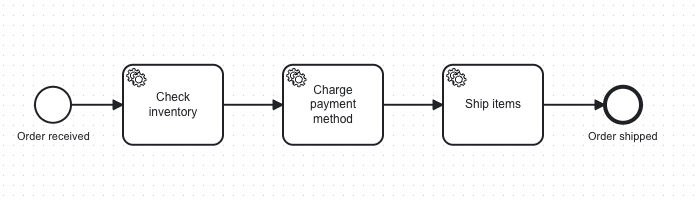
The service tasks in the process are executed by job workers. The java, nodejs, python, and csharp directories inside 2-order-process-with-service-workers contain code for job workers that correspond to this process model.
Instructions
Unzip the Camunda 8 starter package.
Start Camunda 8 Run by changing into the directory and running the command:
- Mac OS + Linux
- Windows
./camunda-start.sh.\camunda-start.batOpen the Desktop Modeler application from the starter package.
In Desktop Modeler, click File > Open File
Select
camunda-8-get-started/2-order-process-with-service-workers/bpmn/order-process.bpmnClick the "Rocket" icon to connect to your Camunda 8 Run instance and deploy the model. You can use the pre-configured
c8run (local)connection.Click the “Play” icon on the bottom toolbar of Desktop Modeler to deploy and start an instance of the process model.
You do not need to set any variables for the process.
Optionally, you can set a value for the
itemvariable by pasting in:{"item": "special widget"}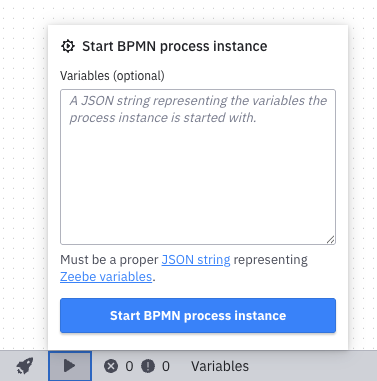
View the process instance and start job workers
A process instance is now running in the engine.
You can view the process instance in Operate, the visual operations tool:
- Navigate to: http://localhost:8080/operate
- Login with the credentials:
demo/demo.
There you will see an active process instance.
Data needs to sync to Operate, so the process instance may not be visible immediately.
Additionally, when the workers are running, process instances will be completed immediately and further process instances will not appear as active.

Next, start the job workers to allow them to perform the work for the service tasks. The workers are configured to connect to the locally-running engine and retrieve available work for the process instance.
- Java + Spring
- Node.js
- Python
- C#
Change into the Spring SDK directory:
cd camunda-8-get-started/2-order-process-with-service-workers/javaStart the workers with the command:
mvn spring-boot:runYou can stop the application via Ctrl+C.
Change into the Node.js SDK directory:
cd camunda-8-get-started/2-order-process-with-service-workers/nodejsInstall dependencies with the command:
npm iStart the workers with the command:
npm startYou can stop the application via Ctrl+C.
Change into the Python SDK directory:
cd camunda-8-get-started/2-order-process-with-service-workers/pythonCreate a virtual environment and install dependencies:
python -m venv .venv
source .venv/bin/activate  # On Windows: .venv\Scripts\activate
pip install -r requirements.txt
Start the workers with the command:
python main.pyYou can stop the application via Ctrl+C.
Change into the C# SDK directory:
cd camunda-8-get-started/2-order-process-with-service-workers/csharpStart the workers with the command:
dotnet runYou can stop the application via Ctrl+C.
The workers start, connect to the engine, and request work. You will see the workers processing the jobs for the process instance.
Complete!
Navigate back to Operate and verify that your active process instance in Operate has transitioned to completed.
Summary
You have completed your first process instance by:
- Running Camunda 8 Run locally.
- Deploying a process model.
- Starting a process instance.
- Completing the service tasks in the process instance using job workers.
Next steps
To learn more about our SDKs, visit their respective documentation pages:
- Java SDK - Camunda Java client documentation
- Spring Boot starter - Camunda Spring Boot Starter documentation
- Node.js SDK - Camunda 8 JavaScript SDK API documentation
- Python SDK - Python SDK documentation
- C# SDK - C# SDK documentation
Teardown
You can stop Camunda 8 Run by executing:
- Mac OS + Linux
- Windows
./camunda-stop.sh
./camunda-stop.bat