Using filters
When you open the Tasks page, you will see the list of all tasks. This is a starting point for managing your workload.
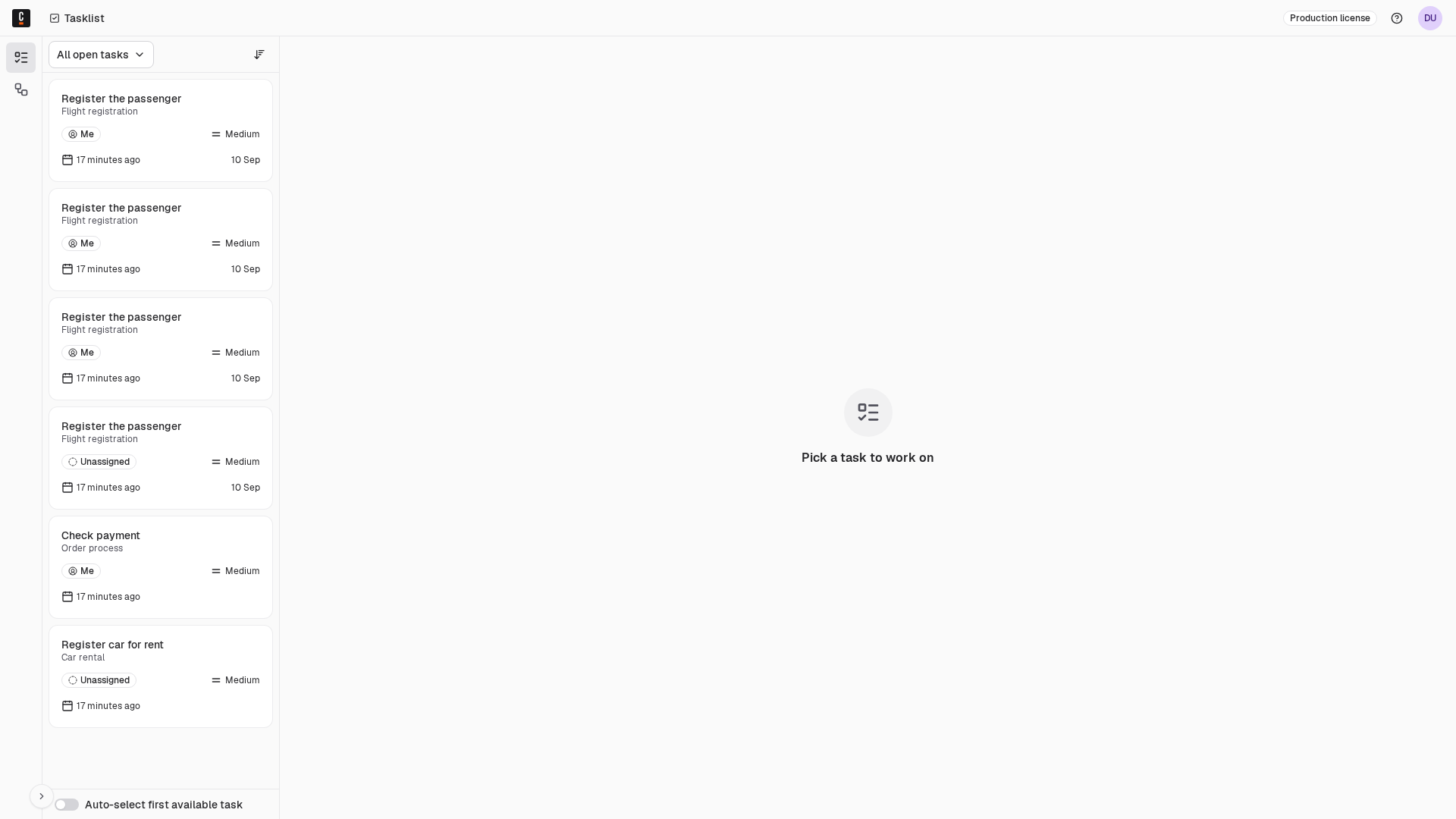
Apply a filter
As you browse through the list, you can utilize filters to locate specific tasks and organize your workload.
Select a filter
You can select one of the default filters or create a new filter.
Default filters:
- All open tasks
- Assigned to me
- Unassigned
- Completed tasks
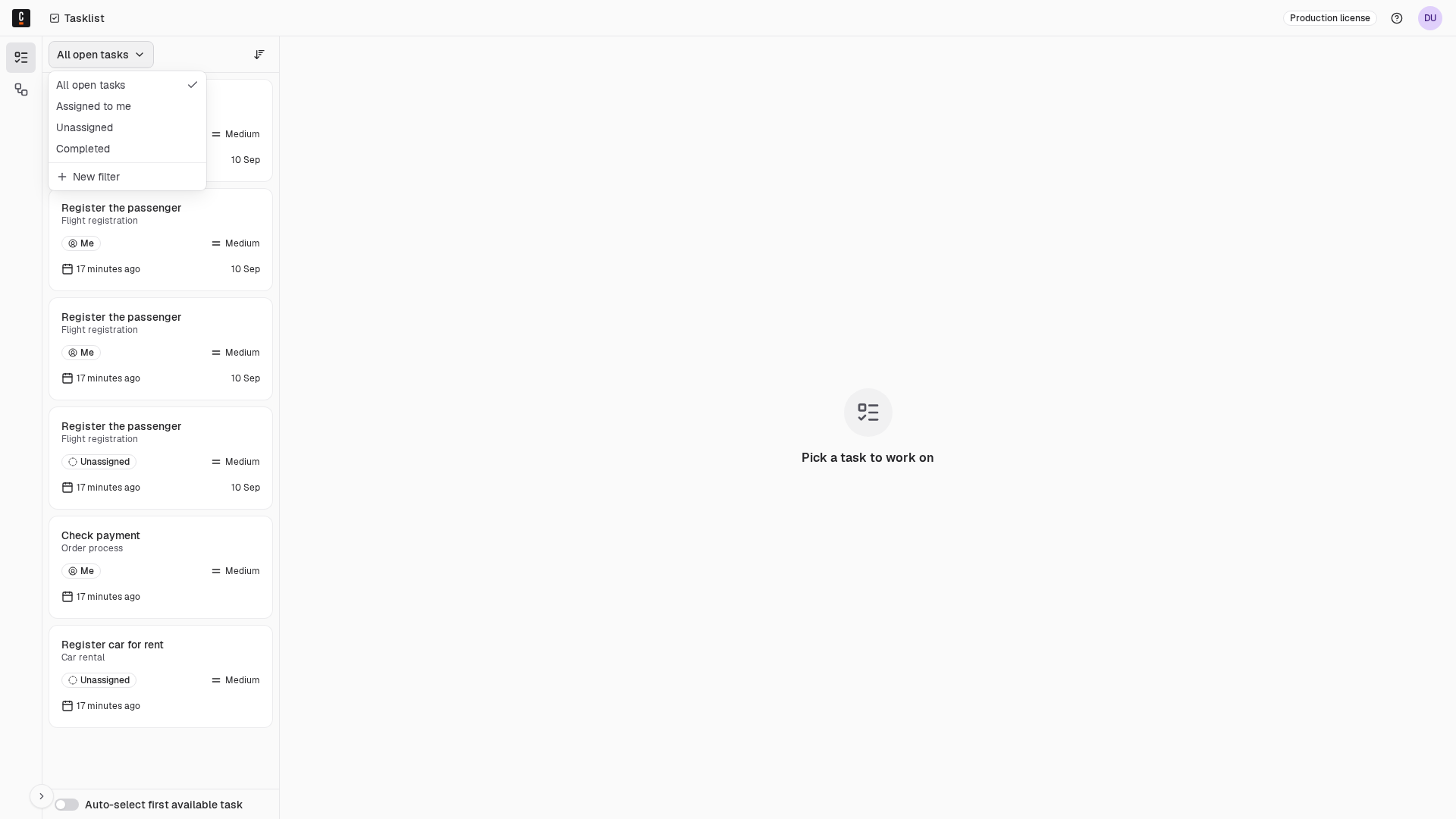
Create new filter
To create a new filter, click to apply a new filter. This action will open a filter dialog. In the dialog, you can define various rules based on task attributes. The supported attributes are:
- Assignees and candidate groups
- Status
- Processes tasks belong to
- Dates (due date and follow up date)
- Task ID
- Business ID
- Task variables
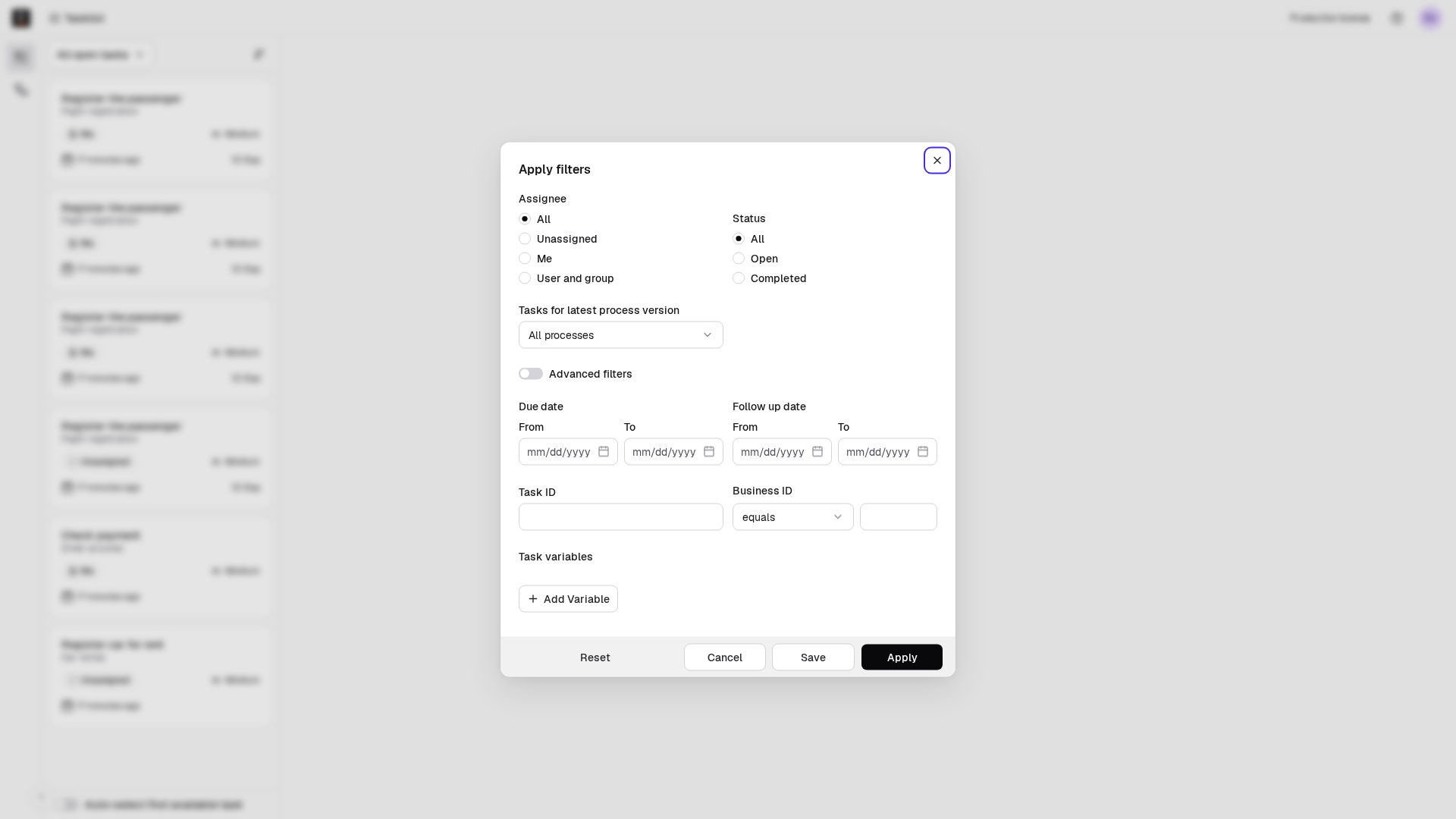
After defining the rules, click Apply to apply the filter. The system will then filter the tasks according to your criteria, displaying only the relevant tasks.
Business ID filter
A business ID is a domain-specific process instance identifier, such as an order number, case reference, or ticket ID. Starting in 8.10, you can filter tasks by business ID directly in the Tasklist filter dialog.
To filter by business ID, open the filter dialog and use the Business ID field.
| UI operator | Behavior | Wildcards |
|---|---|---|
| Equals | Exact match on the business ID value. | — |
| Contains | Pattern match. | * matches multiple characters, ? matches one character. |
| Is one of | Matches any business ID in a comma-separated list. | — |
For additional operators ($neq, $exists, $notIn), use the search user tasks API with the businessId filter field.
Save filter for future use
If you need to use the filter again, you can save it:
- Click Save.
- You will be prompted to enter a name for the filter. Choose a descriptive name that will help you recognize it later.
- Click Save and apply.
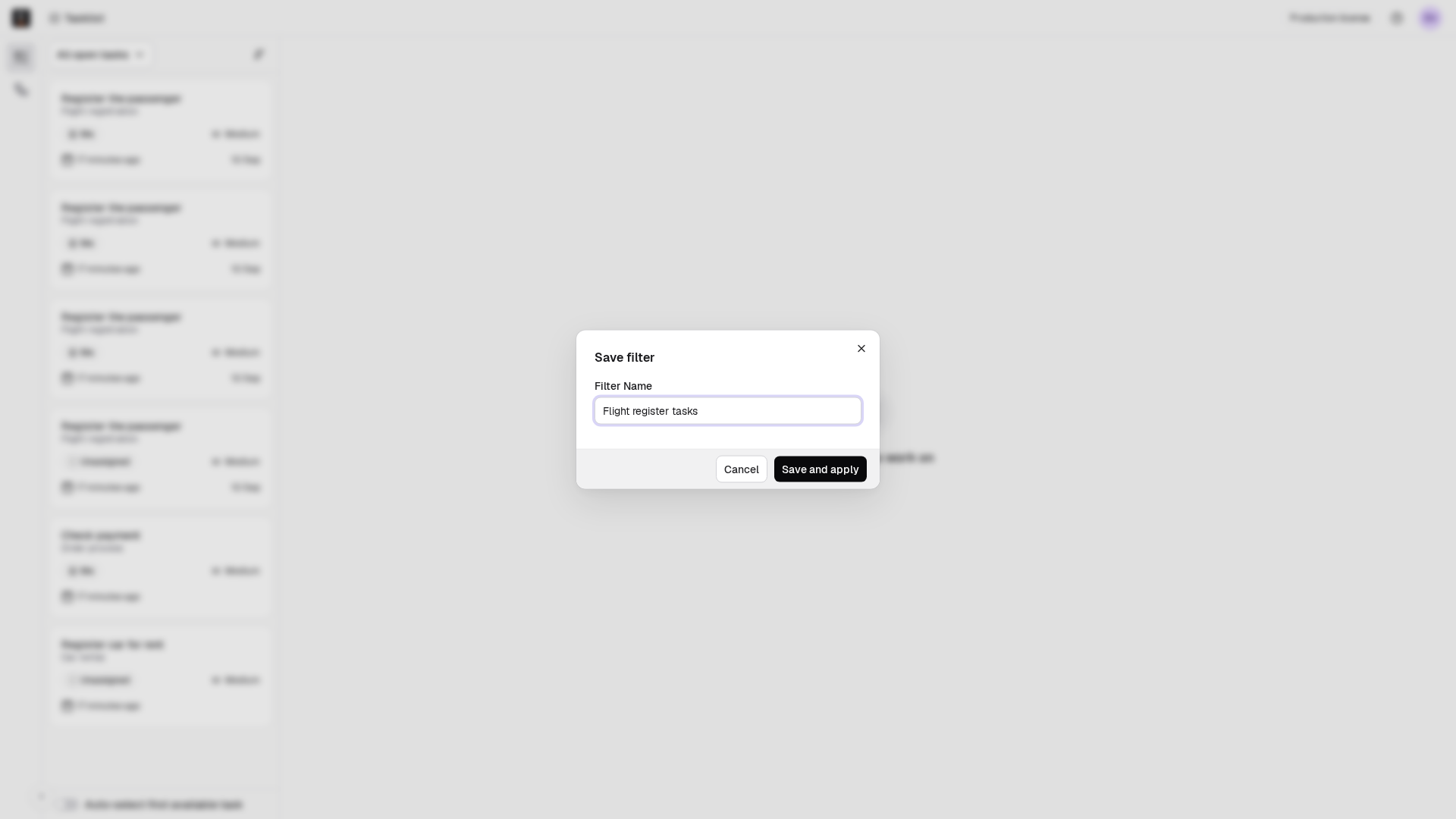
The next time you need this filter, select it from your saved filters.
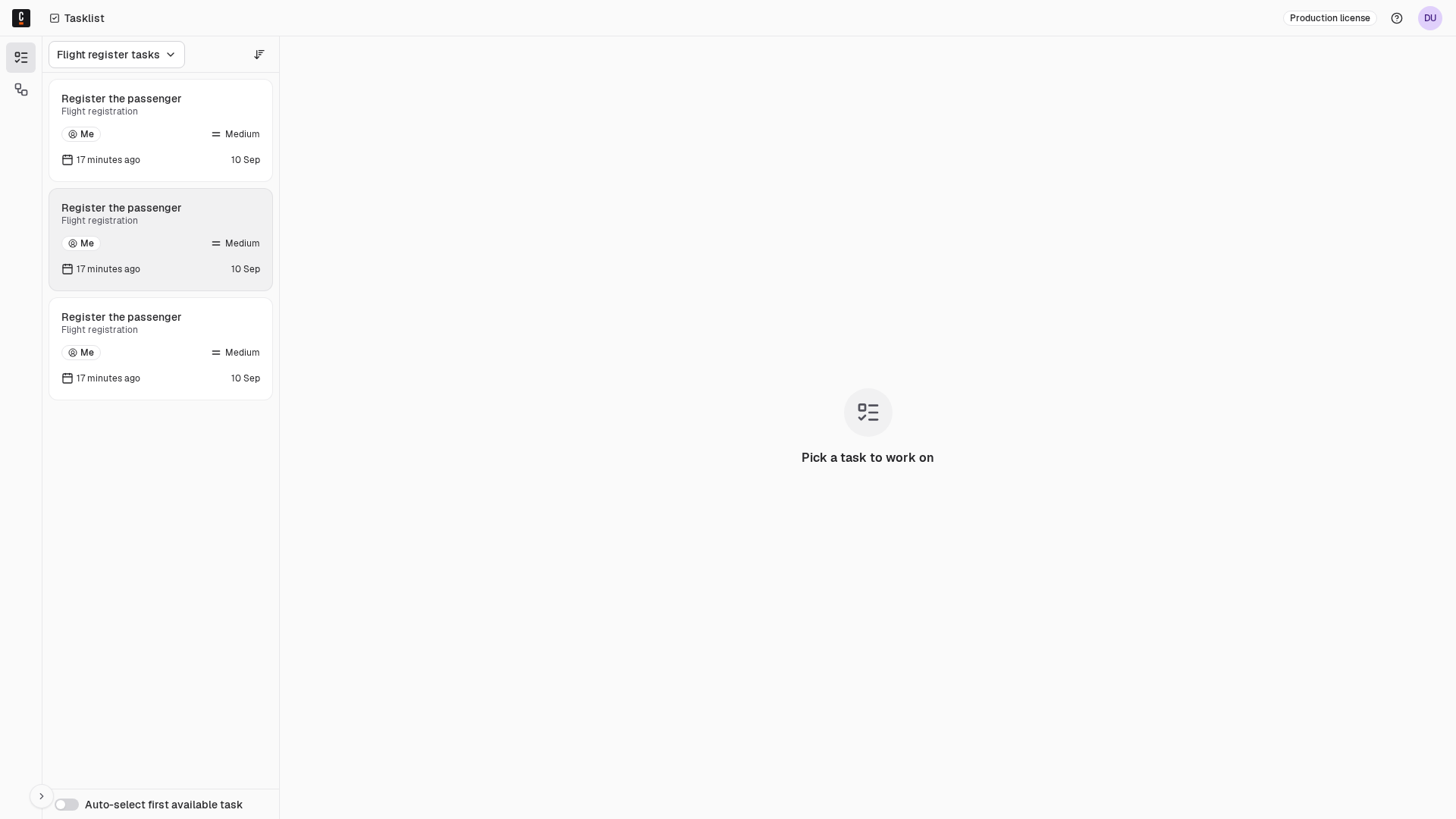
Filters you create are saved locally to your device. Therefore, while you can access and reuse them on the same device, these filters will not be available if you switch to a different device.
Update saved filter
You can edit or delete filters that you saved.
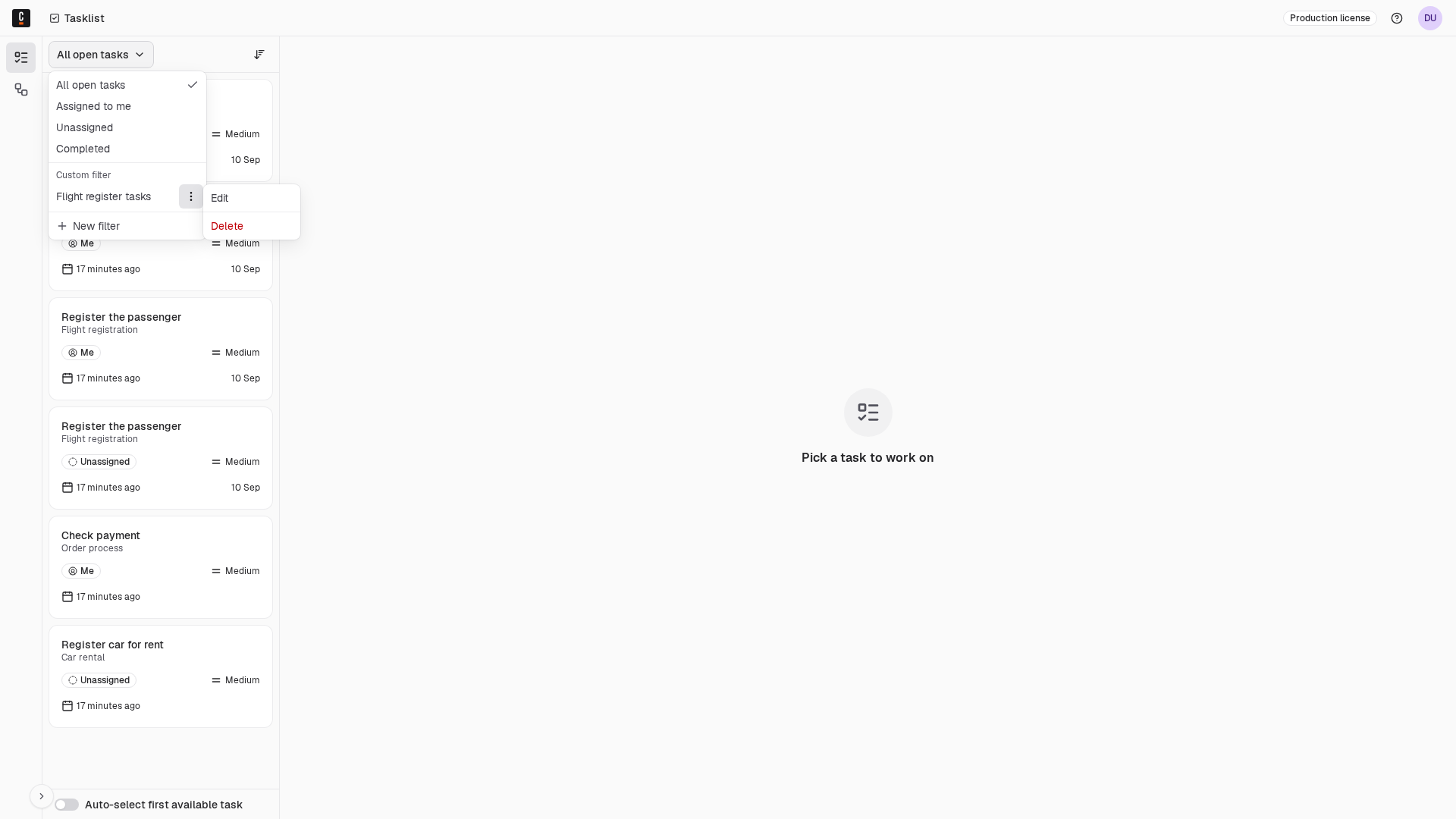
To change the criteria of an existing filter, take the following steps:
- Choose the filter you want to update from your list of saved filters, and click the three vertical dots next to its name.
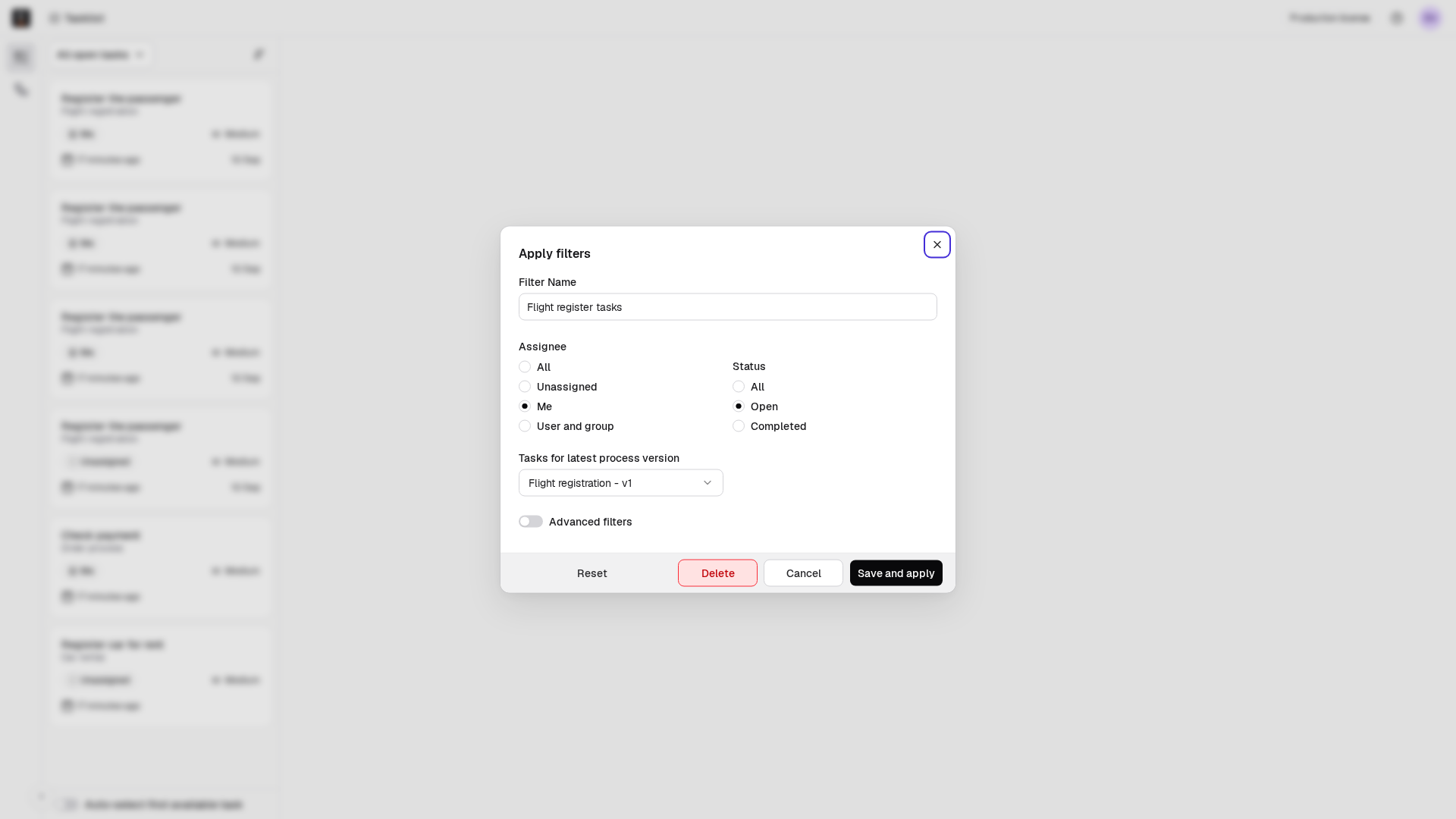
- Click Edit. This action will open the filter dialog with the current settings of the filter.
- Update the filter criteria as needed.
- Confirm the changes by clicking Save and apply.
Delete a filter
To delete a filter, take the following steps:
- Choose the filter you want to delete from your saved filters, and click the three vertical dots next to its name.
- Click Delete.
- Click Confirm deletion in the dialog.
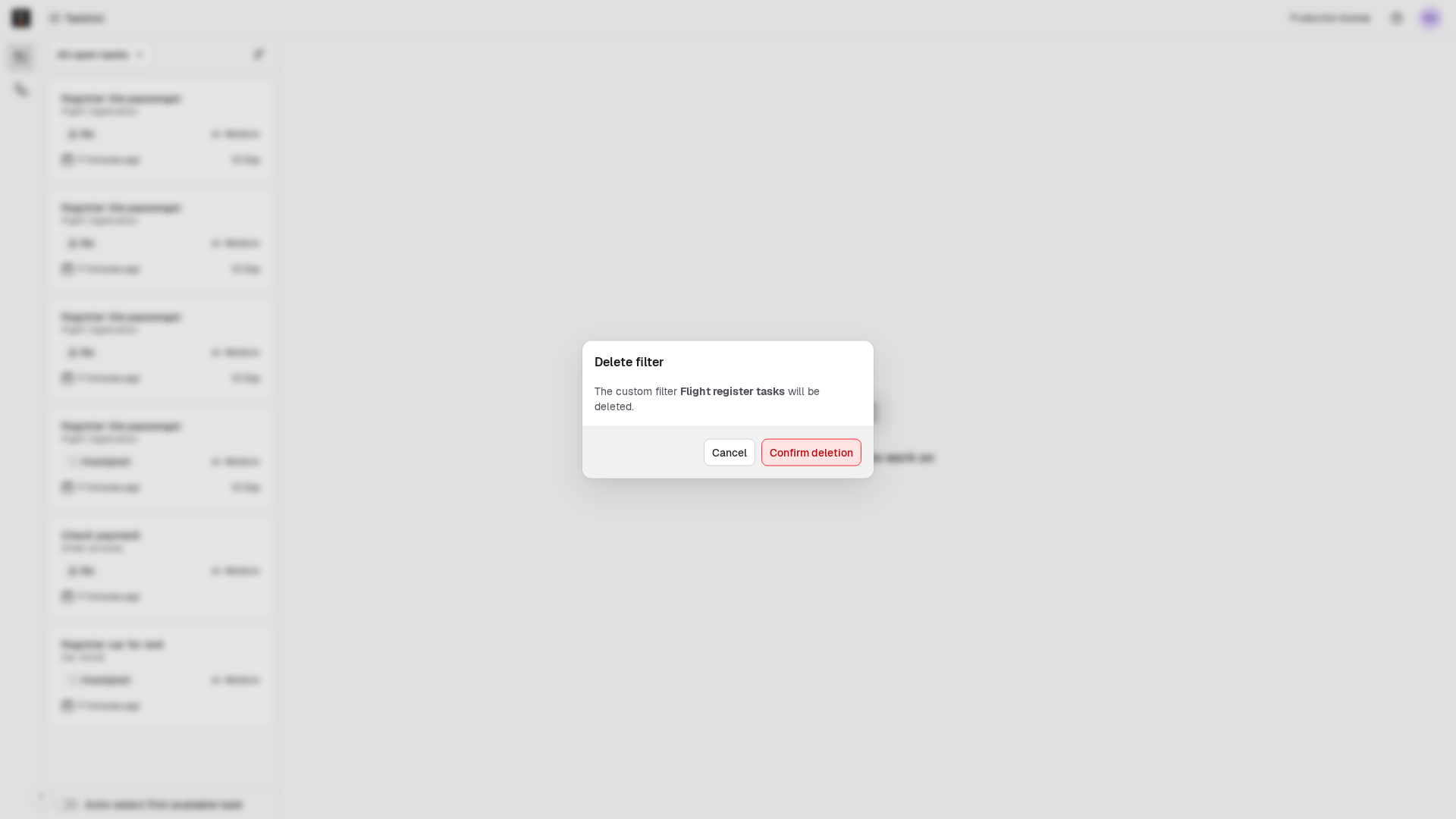
After deletion, the default filter will be applied, showing the full list of tasks again.