Get familiar with Operate
Learn how to navigate Camunda 8 Operate.
Before you begin
This guide and resolve incidents and update variables assume you’ve deployed a process to Zeebe and created at least one process instance, using the order-process.bpmn process model. If you’re not sure how to deploy processes or create instances, visit our guides section to get started with Camunda.
Open Operate
From Camunda Hub, you can open Operate in any environment you have access to:
- Log in to Camunda Hub.
- In the left navigation, click Environments, and then select an environment. Each environment has its own instance of Operate.
- Under Applications, on the Operate card, click Open. This opens Operate for the environment in a new tab.
You can also expand an environment in the left navigation, and select Operate from its applications.
If the environment is paused, you must resume it to access its applications.
View a deployed process
To view a deployed process, take the following steps:
- On the Dashboard page, in the Process Instances by Name panel, note the list of your deployed processes and running instances. The dashboard only displays processes with active instances, so processes without running or incident instances are not shown.
- When you click on the name of a deployed process in the Process Instances by Name panel, you’ll navigate to a view of that process model and all running instances.
- From this Processes page, you can cancel a single running process instance by clicking the cancel icon under the Operations column of the Process Instances table.
Inspect a process instance
Running process instances appear in the Process Instances table below the process model. To inspect a specific instance, click the Process Instance Key.
The process instance page has four parts:
- A header showing the process instance's key, version, and state.
- A process diagram showing the instance's current progress.
- An Instance History panel listing the instance's elements, with search and status filter controls.
- A bottom panel with tabs: Variables, Listeners, and Operations Log are always available. Incidents appears when the instance has one. Details, Input Mappings, and Output Mappings appear once you select a specific element in the diagram.
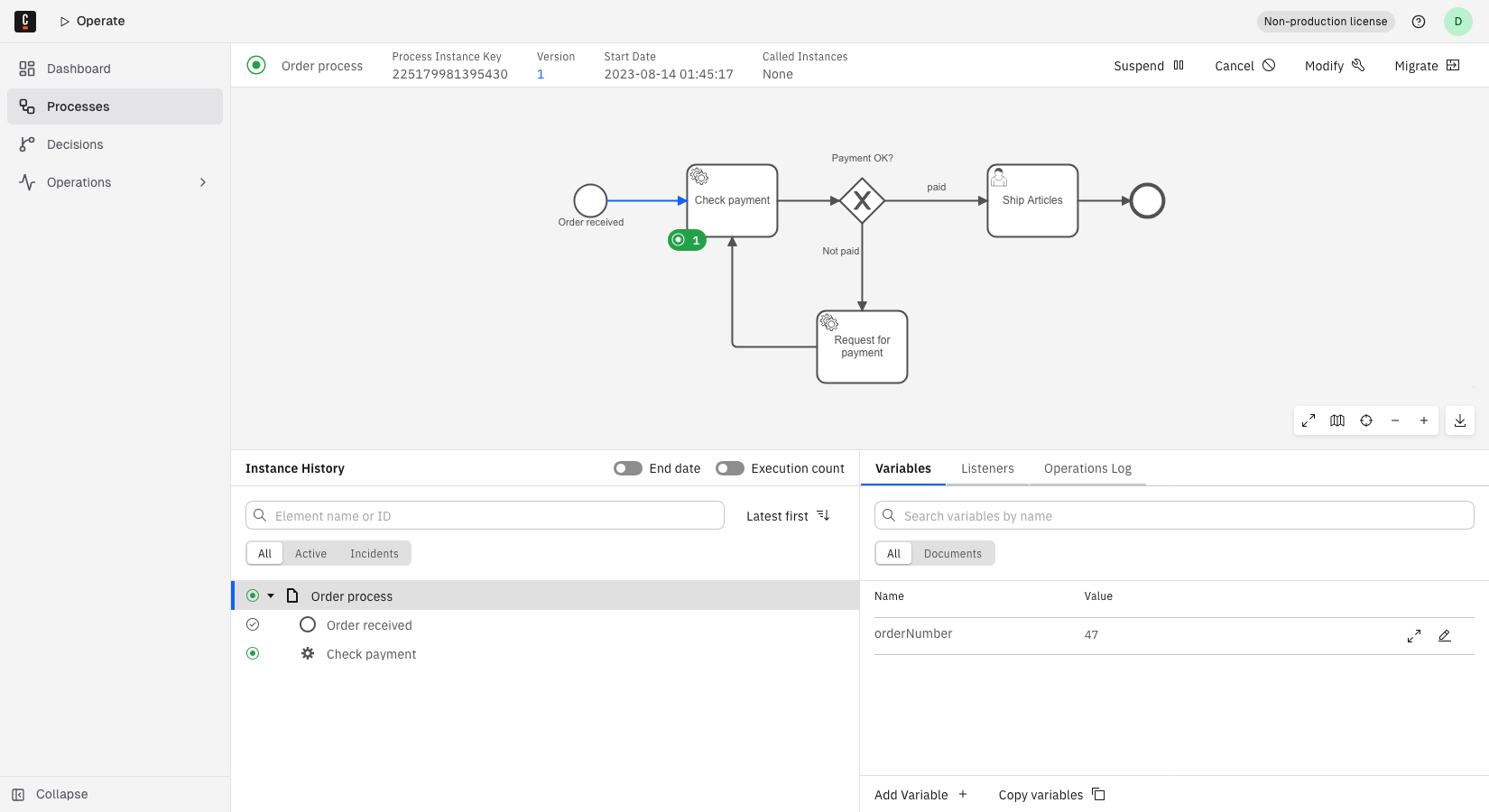
Click an element in the diagram to select it, then use the tabs in the bottom panel to inspect its details, incidents, and variables. In earlier versions, an element's details and incidents appeared in a metadata popover when you clicked it; the popover is now replaced by the Details and Incidents tabs. To visualize process instance performance, use Optimize.
Navigate to a called process instance
When a call activity in the diagram calls another process, double-click the call activity element to jump directly to the called process instance.
Double-click navigation only works when the process instance has called exactly one process instance in total. If it has called more than one — for example, through multiple call activities, or a call activity that ran more than once — double-clicking does nothing.
For a reliable way to find a called process instance, take the following steps:
- Click the call activity element to select it.
- Open the Details tab.
- In the row labeled Called Process Instance, click the link — shown as the called process's name and instance key — to navigate to that instance.
If the call activity has called more than one process instance, the Details tab shows a View all link instead of a single link. This link filters the Processes page by the whole process instance, so it shows every instance it has called, including from other call activities — not only the one you selected.
Business ID for decision instances
Starting in 8.10, a business ID is shown for decision instances in Operate: as an optional filter field in the Decisions list, and in the header of a decision instance's details page, if one is defined for that instance. Filter decision instances by business ID the same way as process instances — using Equals, Contains, and Is one of in the filter UI, or the $eq/$neq/$exists/$like/$in/$notIn operators via the search decision instances API.
Decision instances evaluated before 8.10 do not carry a business ID, since the value is snapshotted from the owning process instance at the decision instance's own creation time. Standalone decision evaluations, which are not tied to a process instance, never carry a business ID.