IDP reference
Technical reference information for IDP, including technical architecture, supported documents, and known limitations.
Technical architecture
IDP offers a composable architecture that allows you to customize and extend IDP capabilities as needed. This flexibility enables you to adapt quickly to evolving business needs while maintaining a streamlined and manageable system.
IDP allows you to create, configure, and publish a document extraction template. This is a type of connector template.
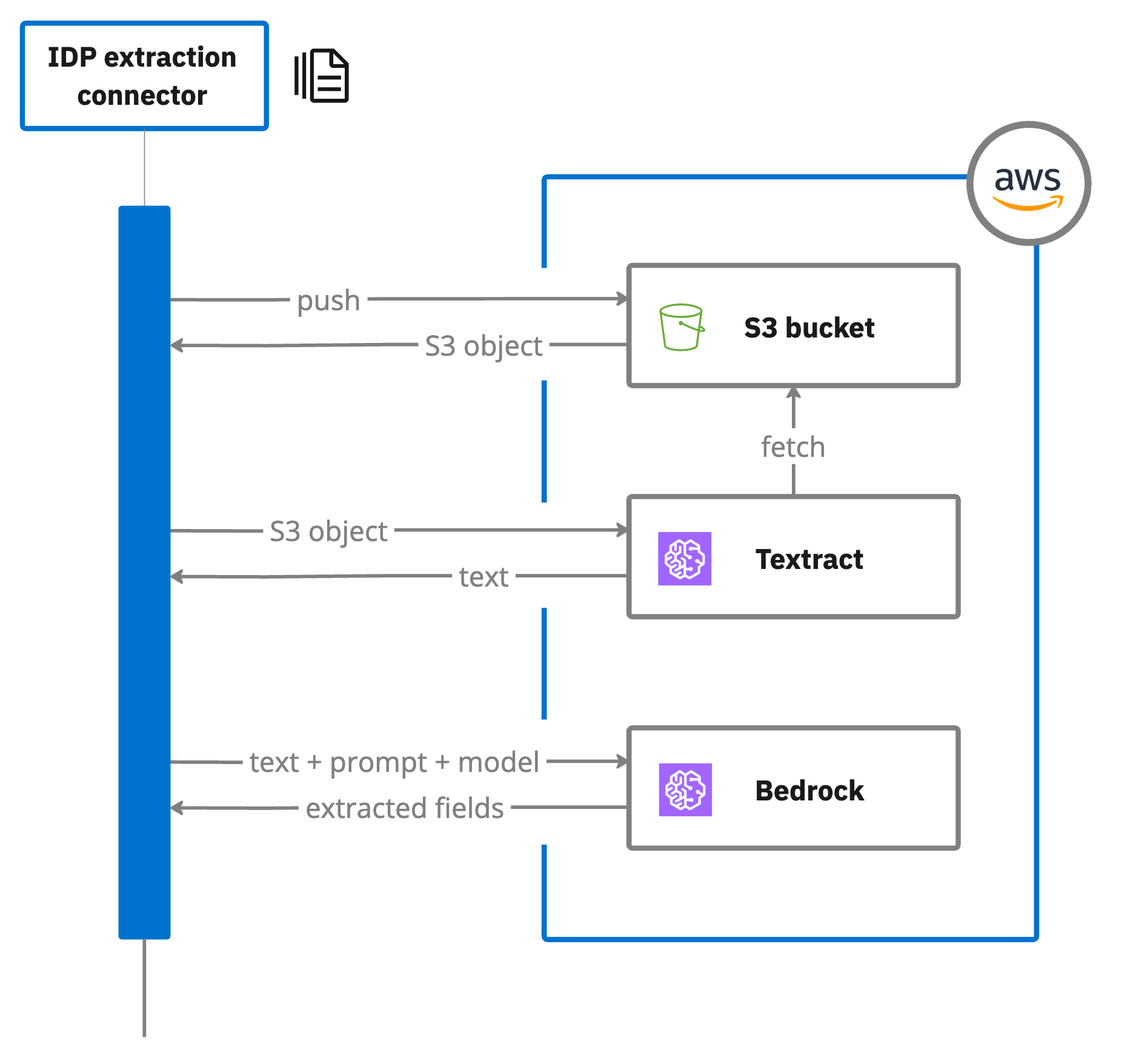
The document extraction template integrates with Camunda document handling connectors and APIs such as Amazon S3, Amazon Textract, Amazon Comprehend, and Amazon Bedrock to retrieve, analyze, and process documents.
-
Document upload: The template accepts uploaded documents as input. These documents can be uploaded to a local document store, and their references used in the extraction process. For example, the connector uploads the document to an Amazon S3 bucket for extraction.
-
Amazon Textract: Uploaded documents are analyzed by Amazon Textract, which extracts text data and returns the results. The template configuration includes specifying the document, the S3 bucket name for temporary storage during Amazon Textract analysis, and other required parameters such as extraction fields and Amazon Bedrock Converse parameters.
-
Amazon Bedrock: Your extraction field prompts are used by Amazon Bedrock to extract data from the document. The extracted content is mapped to process variables, and the results stored in a specified result variable.
- You may encounter errors during extraction and validation if you have not added your Amazon AWS IAM account
access keyandsecret keyas a connector secret to your cluster. See configuring IDP.
Document storage
IDP stores documents as follows during the different extraction stages:
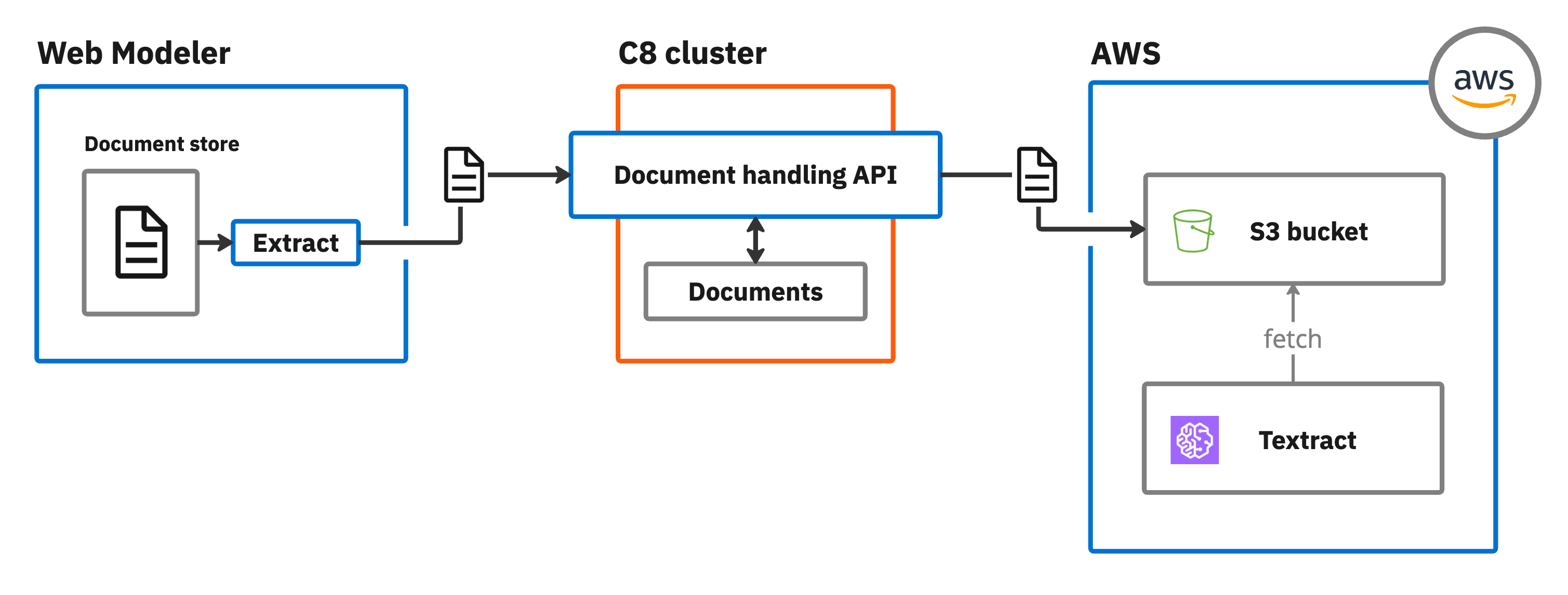
- Web Modeler: Uploaded sample documents are stored within Web Modeler itself (SaaS) or the database (Self-Managed).
- Cluster: During extraction testing (for example, when you click Extract document) the document is stored in the cluster using the document handling API.
- Extraction: Finally, when you extract content using a document extraction template, it is stored in an Amazon AWS S3 bucket, where it can be accessed by AWS Textract.
To learn more about storing, tracking, and managing documents in Camunda 8, see document handling.
Document file formats
IDP currently only supports data extraction from the following uploaded document file formats.
| File format | Description |
|---|---|
|
Document language support
IDP supports data extraction and processing of documents in multiple languages.
Language support depends on the text extraction engine you use. For example, with the AWS provider, IDP integrates with Amazon Textract, which supports multilingual text extraction and can detect and extract text in multiple languages. Other extraction engines (Azure Document Intelligence, GCP Document AI) also support multiple languages. Refer to the respective provider documentation for details.
At the time of the 8.7 release (April 2025), Amazon Textract can detect printed text and handwriting from the Standard English alphabet and ASCII symbols, and can extract printed text, forms and tables in English, German, French, Spanish, Italian and Portuguese. Refer to Amazon Textract FAQs for current information on supported languages.
Extraction field data types
Specify the extraction field data type to indicate to the LLM what type of data it should be trying to extract. This helps the LLM more accurately analyze and extract the correct data.
For example, if you want to extract an expected numeric value (such as a monetary value), select the Number data type for the extraction field.
Supported data types
You can specify the following extraction field data types.
| Data type | Description |
|---|---|
| Boolean | The LLM should expect a true or false value, such as "yes" or "no". |
| Number | The LLM should expect to extract a numeric value. |
| String | The LLM should expect to extract a sequence of characters. |
Extraction models
You can choose from the following supported LLM extraction models during data extraction. The available models depend on the cloud provider you configure for your document extraction template.
AWS extraction models
The following models are available when you use the AWS provider with Amazon Bedrock:
| Extraction model | Model provider | Documentation |
|---|---|---|
| Claude Sonnet 4 | Anthropic | Anthropic's Claude in Amazon Bedrock |
| Claude 3.5 Sonnet | Anthropic | Anthropic's Claude in Amazon Bedrock |
| Claude 3 Sonnet | Anthropic | Anthropic's Claude in Amazon Bedrock |
| Claude 3 Haiku | Anthropic | Anthropic's Claude in Amazon Bedrock |
| Llama 3 70B Instruct | Meta | Meta's Llama in Amazon Bedrock |
| Llama 3 8B Instruct | Meta | Meta's Llama in Amazon Bedrock |
| Titan Text Premier | Amazon AWS | Amazon Titan Text models |
Amazon Bedrock LLM extraction models are only available in specific regions.
- You must ensure your selected cluster region supports the LLM extraction model you want to use. For example, if you are using the
eu-central-1region, you cannot use Claude 3 Haiku as it is only available in US regions. - If you have chosen a model not supported in your region, you will receive a 403 "You don't have access to the model with the specified model ID" exception error.
- Some newer models (including Claude Sonnet 4) require cross-region inference profiles and are automatically handled by IDP. When you select these models, IDP infers the appropriate regional prefix (
us.,eu.,apac., orus-gov.) from your configured AWS region and adds it to enable access across supported regions within your geographic area.
For current regional support information, refer to supported foundation models in Amazon Bedrock. For more details about cross-region inference, see inference profiles.
Azure, GCP, and OpenAI Compatible extraction models
When using Azure, GCP, or an OpenAI Compatible provider, the available extraction models depend on the models deployed and accessible through your provider configuration:
- Azure: Models available through your Azure AI Foundry deployment, including Azure OpenAI models if configured. See Azure connector secrets.
- GCP: Models available through your Google Cloud Vertex AI deployment. See GCP connector secrets.
- OpenAI Compatible: Any model accessible through your OpenAI Compatible API endpoint. The Extraction model field accepts custom model IDs, allowing you to specify the exact model to use. See OpenAI Compatible connector secrets.
Text extraction engines
Text extraction engines determine how text is extracted from your documents before the LLM processes the content. You can select an extraction engine per unstructured extraction template to optimize for accuracy, performance, and cost based on your document type.
| Extraction engine | Provider | Best for | Description |
|---|---|---|---|
| Fast Extract | Built-in | Digitally generated PDFs | A lightweight, built-in PDF text parser. Faster and lower cost than OCR-based engines, but does not support scanned or image-based documents. |
| Multimodal | Provider LLM | Documents where the LLM has vision capabilities | Sends the document directly to the LLM for native interpretation, bypassing a separate text extraction step. Useful when the LLM supports multimodal (text and image) input. |
| AWS Textract | AWS | Scanned or image-based documents | Uses Amazon Textract OCR for high-accuracy text extraction. Requires AWS provider configuration. |
| Azure Document Intelligence | Azure | Scanned or image-based documents | Uses Azure AI Document Intelligence for OCR-based text extraction. Requires Azure provider configuration. |
| GCP Document AI | GCP | Scanned or image-based documents | Uses Google Cloud Document AI for OCR-based text extraction. Requires GCP provider configuration. |
The available extraction engines depend on the cloud provider you configure for your document extraction template. For example, AWS Textract is only available when using the AWS provider. See configuring IDP for provider setup details.
Optical Character Recognition (OCR)
Optical Character Recognition (OCR) technology is used by several text extraction engines to detect and extract text and layout from scanned or digital documents.
You can use the following OCR-based extraction engines:
- AWS Textract: Used for both structured and unstructured extraction with the AWS provider.
- Azure Document Intelligence: Used for unstructured extraction with the Azure provider.
- GCP Document AI: Used for both structured and unstructured extraction with the GCP provider.
AWS Textract OCR capabilities
Structured data extraction with the AWS provider uses Amazon Textract:
- Extracts text, layout, and key-value pairs.
- Supports horizontal text only.
- Supports English handwriting.
- Supported languages for typed characters: Spanish, German, French, Italian, Portuguese.
Known limitations:
- No language detection.
- No vertical text support.
- Limited support for complex custom fields.
- No detection of table headers.
Table data extraction
IDP can extract table data using LLM foundation models to identify and structure tabular data based on your prompts.
Default JSON extraction format
When extracting repeated elements from a document, the extraction defaults to JSON format unless instructed.
In this format:
- Table data is represented as an array of objects.
- Each object corresponds to a row.
- Column names are used as object keys, with values mapped accordingly.
Example JSON output
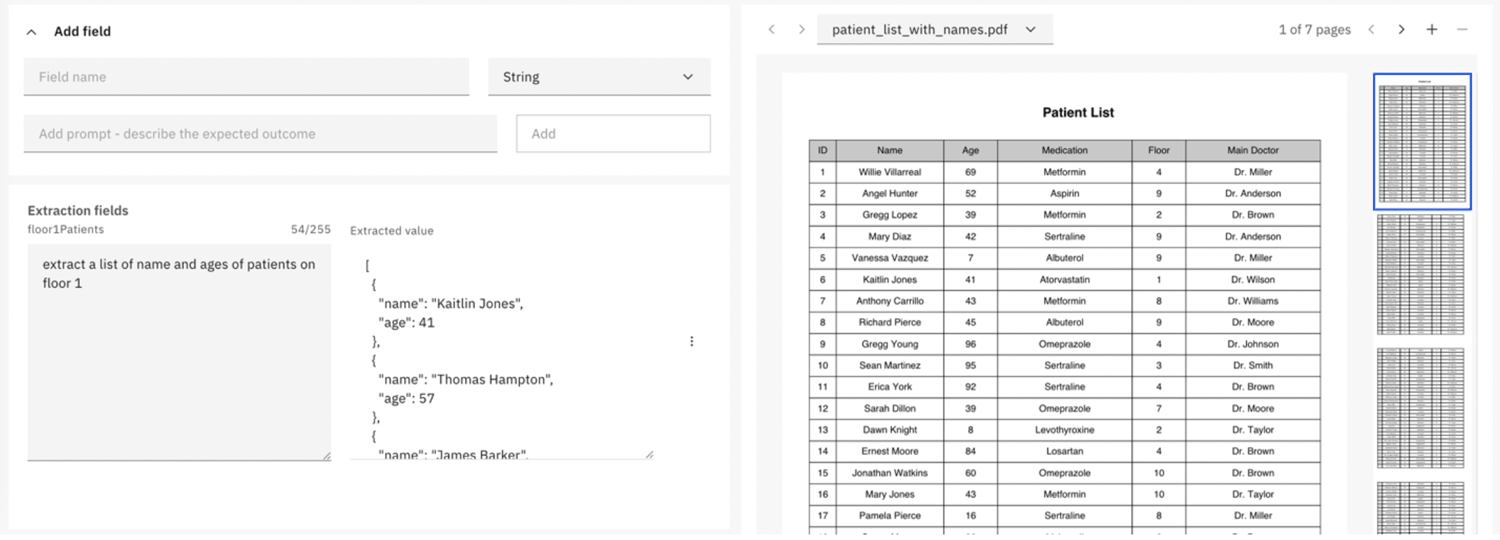
Prompt: "Extract a list of name and ages of patients on floor 1".
[
  {
    "name": "Kaitlin Jones",
    "age": 41
  },
  {
    "name": "Thomas Hampton",
    "age": 57
  }
]
CSV extraction
To extract table data in CSV format, specify this in the prompt. The output is then structured in a CSV-compatible format.
Example CSV output
Prompt: "Extract a list of name and ages of patients on floor 1 as CSV".
Name,Age
Kaitlin Jones,41
Thomas Hampton,57
Customize table data extraction
You can further refine table extraction by:
- Explicitly specifying column headers.
- Defining delimiter preferences for CSV.
- Requesting additional context for ambiguous data.
Access rights and permissions
Access to IDP features is determined by your Web Modeler user role and associated access rights and permissions.
For example, users with a Viewer or Commenter role only have read-only access to IDP features, and cannot upload documents, manage extraction fields, or publish document extraction templates.
| Feature | Viewer/Commenter | Editor/Project Admin | Super-user |
|---|---|---|---|
| View IDP application |  | | |
| View document extraction | | | |
| View documents | | | |
| View extraction fields/prompts | | | |
| View validate extraction | | | |
| Create/edit/delete IDP application |  | | |
| Create/edit/delete document extraction | | | |
| Upload/delete documents | | | |
| Add/edit/delete extraction fields/prompts | | | |
| Extract data | | | |
| Save as test case | | | |
| Validate extraction (test documents) | | | |
| Publish template | | | |
| View versions | | | |
| Manage versions (edit, restore, delete) | | | |
Key: Full access | Read-only access
Validation status
During validation, a validation status is shown for extraction fields to indicate the accuracy of the extracted data.
| Icon | Status | Description |
|---|---|---|
 | Pass | The document validation passed with accurate and expected results. |
 | Caution | A test case is missing for comparison. Click Save test case to create a test case for this field. |
 | Fail | The validation results do not match the expected output for the document. Click Review document to investigate and resolve. |
Example
The following example shows the results of a partially successful extraction against three documents.
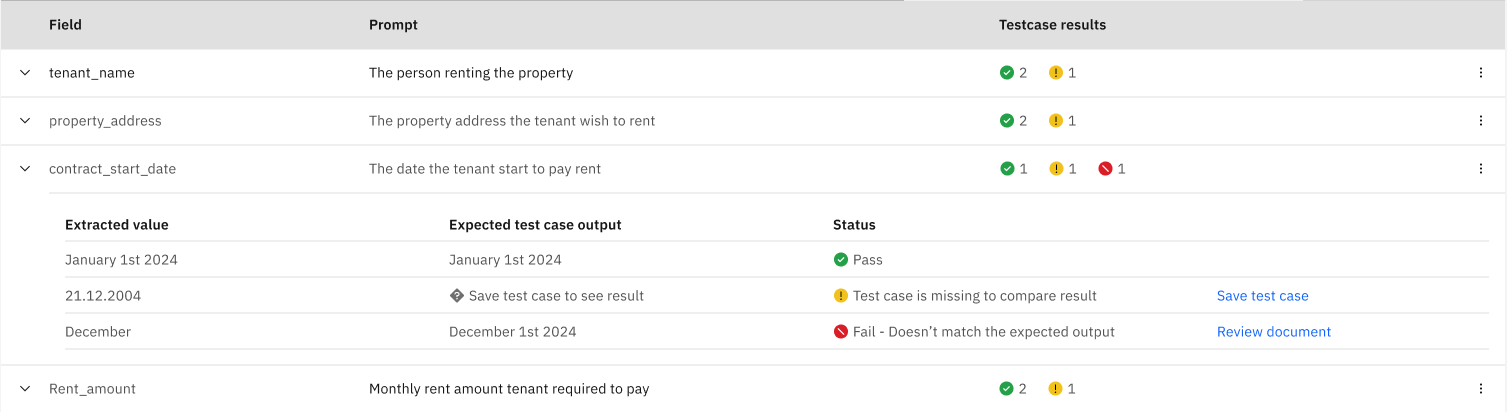
The expanded contract_start_date field shows that each document returned different validation results.
- The first document passed the validation, with the Extracted value matching the Expected test case output.
- The second document could not be validated as a test case was not found for comparison. Click Save test case to create a test case for the document.
- The third document failed validation as the Extracted value did not match the Expected test case output. Click Review document to open the document again and check the prompt for this field.