FEEL Playground
Use the FEEL Playground to validate and troubleshoot your FEEL expressions when modeling process diagrams in Camunda Hub.
About FEEL Playground
When using the FEEL expression language in Camunda, your FEEL expressions must be valid. The FEEL Playground allows you to test and validate your FEEL expressions using sample contextual data.
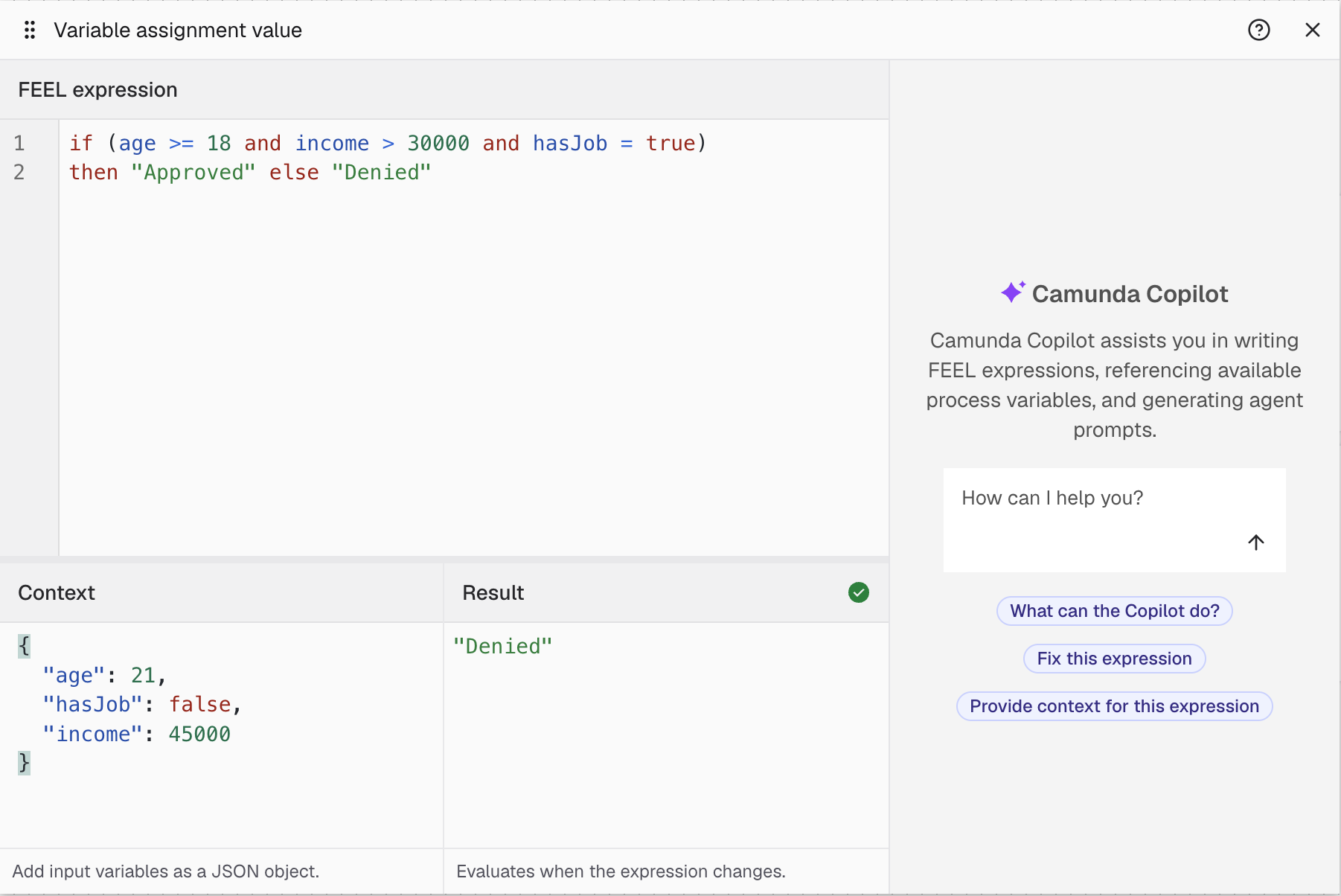
The FEEL Playground is integrated into the popup FEEL editor:
-
FEEL expression: Enter and edit the FEEL expression you want to validate.
-
Context: A JSON object containing sample data and variables for evaluating your expression. Camunda saves the context for the field and restores it when you reopen the FEEL Playground.
-
Result: Shows the result of evaluating the expression against the context, including warnings or errors.
-
FEEL Copilot: (For SaaS only) Open the FEEL Copilot (alpha feature) to chat with the AI FEEL Copilot and get help with generating expressions.
The FEEL Playground evaluates expressions in the connected environment when it runs Camunda 8.9 or newer. If runtime evaluation isn't available, it uses the built-in FEEL engine and displays the reason in a warning badge.
Validate your FEEL expression
To use the FEEL Playground for validation:
-
Open the properties panel of a diagram element containing the FEEL expression you want to validate.
-
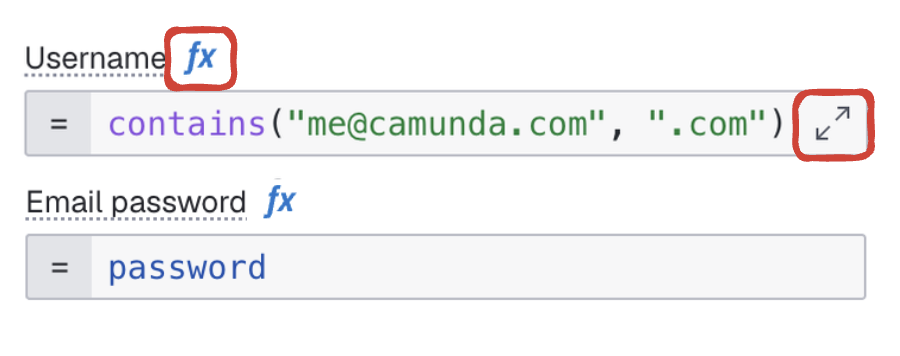
To open the popup FEEL editor, click fx on the FEEL expression field, and click the Open popup editor icon in the field.
-
In the popup FEEL editor, enter your expression and context. Review the result, warnings, or errors, and edit the expression as required.
Prompting in FEEL Playground
Use prompting in FEEL Playground to help you write FEEL expressions.
To prompt in FEEL Playground:
-
Open the properties panel of a diagram element that contains the FEEL expression you want to validate.
-
In the FEEL expression field, click fx, then click Open popup editor.
-
In the popup editor, enter your prompt details.
-
Click Use expression to use your prompt in your FEEL expression.

LLM provider-specific prompting
Prompting supports prompt creation for specific LLM providers.
For example, a prompt like "Please create a prompt for a classification agent that needs to classify text received by a customer to a list of "sentiment". My model is OpenAI o3." is treated as an OpenAI-specific prompt.
