Settings
Configure and manage your Desktop Modeler application and plugin preferences and defaults via the Settings window.
Manage Desktop Modeler settings
Open the Settings window either from the application menu or by using the Cmd/Ctrl + , keyboard shortcut.
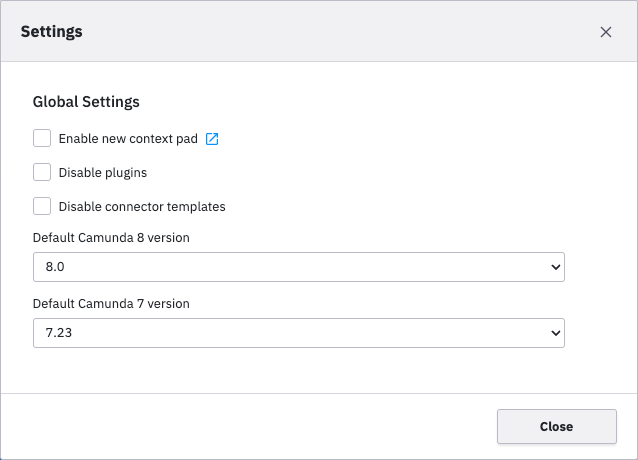
- Changes are saved automatically. If a restart is required to apply your changes, a warning is displayed.
- Open additional documentation links for a setting by clicking the blue icon next to the setting name.
Settings overview
The following Desktop Modeler settings are available:
| Setting | Description |
|---|---|
| Enable new context pad | Enables the alternative context pad interface. |
| Disable plugins | Disables all installed plugins when running Desktop Modeler. |
| Disable connector templates | If checked, Desktop Modeler will not automatically download or use Camunda connector templates. See automatic connector template fetching for details. |
| Default Camunda 8 version | Sets the default Camunda 8 execution platform version for new diagrams. |
| Default Camunda 7 version | Sets the default Camunda 7 execution platform version for new diagrams. |
note
Plugins may also provide their own settings in the Settings window.
Settings JSON file
Your settings are saved in a settings.json file in the user data directory.
note
Only the settings you have changed are stored in this file.