Task testing
You can test a single task directly within Camunda Hub to validate its configuration and logic without executing the entire process.
Task testing lets you quickly debug mappings, inputs, and outputs without leaving your implementation context.
Task testing vs. Test mode
While both task testing and Test mode let you validate your BPMN models, they serve different purposes:
| Feature / capability | Task testing (Implement mode) | Test mode |
|---|---|---|
| Test scope | Single task or sub-process | Process segment or full diagram |
| Best for | Quick implementation checks | End-to-end test validation |
| Data type | Live data only | Live or mocked data |
| Saves test cases | No | Yes |
| Mode required | Runs directly in Implement mode | Requires switching to Test mode |
Use task testing during implementation for quick feedback, and use Test mode for structured testing with mock data or reusable test cases.
Prerequisites
Before running task testing, ensure you have:
- A runtime connection to an environment, hosted on an active Camunda 8.8 or later Orchestration Cluster
- Permissions to deploy and run processes in the target environment
Run a task test
To test a task in Camunda Hub:
- In your BPMN diagram, click the task you want to test.
- Open the Details panel on the right side of the modeling interface.
- Select the Test tab.
- Under Input, define the process variables in JSON format to simulate the process context.
- Use the Variables panel to review available variables in your process.
- Confirm that input mappings for your task are configured correctly.
- Match variable names and types to those expected by the task.
- Provide realistic sample data to reflect actual execution conditions.
- Click Run test to execute the task.
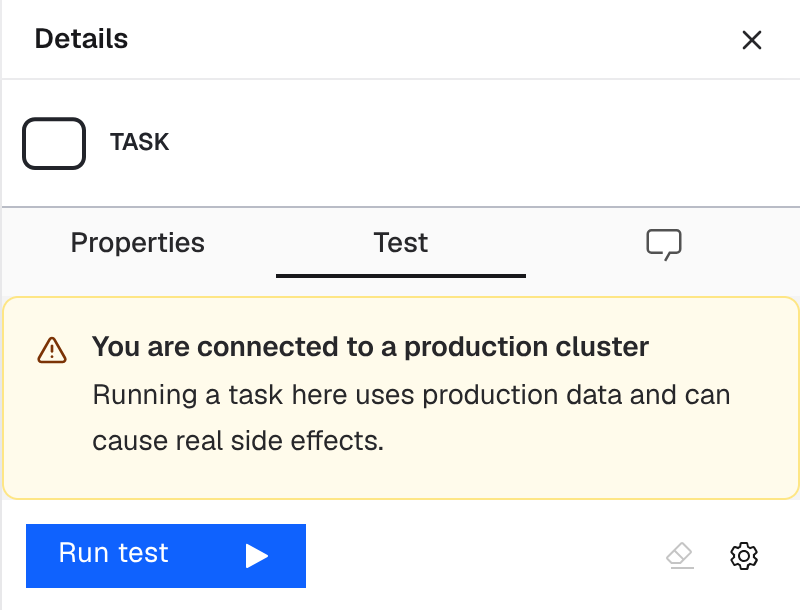
Camunda Hub automatically deploys the process before running the test. The task executes on the environment or cluster selected in the Runtime selector, using your defined input data. To test against a different runtime, change the runtime connection. If you're connected to a production runtime, the Test tab shows You are connected to a production cluster (or production environment), because running a task there uses production data and can cause real side effects.
During execution, the log displays each step in real time, including any states where the test is waiting for an external action to complete.
View results
After the test completes, results appear in the Details panel in the Test tab under Result:
| Status | Result description |
|---|---|
| Successful execution | The Result section displays the resulting process variables and any updates. |
| Incident during execution | Details are shown along with the relevant variable context to help diagnose the issue. |
| Execution error | The error message and response details are displayed. |