Fix problems in your diagram
The Problems panel is at the bottom of the modeling interface. Use it to debug and fix errors in your processes.
Design time errors
Based on a set of lint rules, Camunda Hub continuously validates implementation properties for a process diagram while the user is modeling. The validation errors are added to the panel at the bottom of Camunda Hub. Expand the panel to view the errors by clicking the Problems header. The panel is collapsed by default and the latest state (expanded or collapsed) is remembered for the next time you open Camunda Hub.
An error is shown if any process ID, decision ID, or form ID exceeds the supported length for the target environment. To avoid backend-specific deployment problems, keep those IDs short and consistent with the limits of the cluster you plan to deploy to.
Camunda version selection
The version selector at the top right of the Problems panel can be used to choose the Camunda version the diagram is validated against. The chosen version should match the version of the cluster that hosts the environment where the diagram will be deployed so that the correct set of errors is shown.
If you don't know the version click Deploy & run at the top right of the modeling interface. In the deployment dialog, next to the name of each environment, you'll see the Camunda version of its cluster.
The version selector also shows how many environments (or clusters, if your organization doesn't use environments) are available for each Camunda version.
Follow the runtime connection version
Click Check problems against and select Follow runtime environment to validate the diagram against the Camunda version of the runtime you're connected to. If your organization doesn't use environments, the option is called Follow runtime cluster. When you connect to a different runtime, the validated version follows automatically. To stop following, select a specific Camunda version.
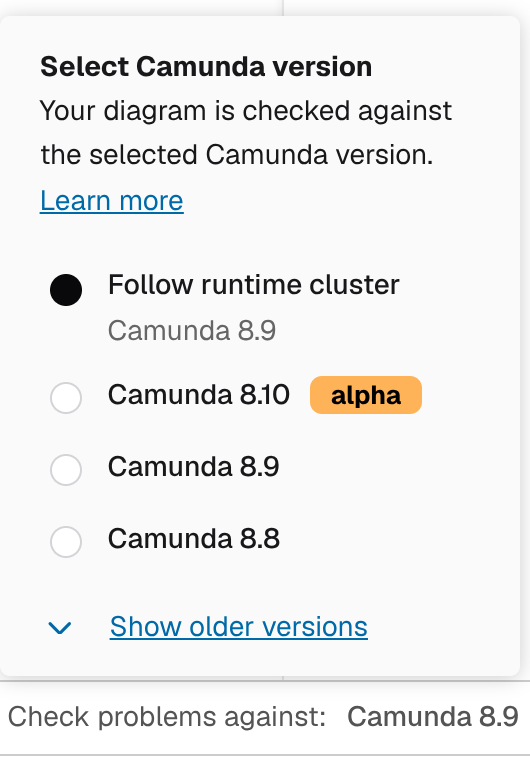
Below the option, the menu shows the followed version, for example Camunda 8.9. It shows Not connected to an environment. (or Not connected to a cluster.) if you're working offline, and Version not recognized. if Camunda Hub can't map the runtime's version to a supported Camunda version.
Interactivity
Errors in the Problems panel are interactive. Clicking on the row highlights the corresponding element in the canvas and points to the specific property in the properties panel where you can resolve the issue.
Deploy time errors
If errors are thrown by the engine when deploying a diagram (whether they were caught by design time errors or not), they will be displayed in the deployment modal.