Collaborate with your team
Learn about ways to collaborate with your team in Camunda Hub workspaces.
Share and embed diagrams
You can share diagrams with others in read-only mode via a sharing link. This link can also be protected with an additional password.
- Open a diagram.
- In the top right corner of the modeler interface, open the vertical ellipsis menu, and select Share.
- Click Create link.
- (Optional: Protect this link with a password) At the bottom of the modal, next to Password protect, click Add, and type a password.
- Share or use the link with one of the following methods:
- Click Copy to share the URL directly.
- Click Embed to copy an
iframeHTML tag. - Click Email to share the new link with multiple email recipients.
For wiki systems like Confluence, Camunda recommends using the HTML macro and adding the iframe tag from the sharing dialog. This way, diagrams can be easily included in documentation pages. To adjust the dimensions of the diagram, the width and height values of the iframe tag can be modified.
Comments
Use comments to discuss your diagram:
- Open a diagram.
- On the right side of the modeler interface, in the Details panel next to Properties and Test, select the Comments icon.
If a single element is selected, the comments in this panel only apply to the selected element. Otherwise, they apply to the entire diagram.
Elements with comments have a Comment icon in the diagram.
If you have Workspace Admin, Editor, or Commenter access rights, you can:
- Add a new comment.
- Edit or delete a comment with the vertical ellipsis menu on the comment.
Mention others in comments
When leaving a comment, type the @ character to filter and select a workspace member. When submitting the comment, this member will receive an email as a notification about the new comment.
Members without email addresses will not receive any kind of notification about being mentioned in a comment.
Collaborate on diagrams
Model a diagram together
When other members open the same diagram as you, the updates on the diagram are sent in real time. You can also see who is in the diagram with you.
Canvas lock
To prevent conflicts and broken sessions when multiple people open the same diagram, Camunda Hub automatically locks the canvas.
When a member with edit permissions starts editing a diagram, the canvas is automatically locked. While the lock is active, no other members can modify the diagram — this prevents conflicting edits.
Other members can still do the following:
- Open and view the diagram in real time
- Switch modes
- Navigate the canvas
- Drill down into subprocesses
- Inspect properties and linked assets
- Add comments (if they have permission)
Take over editing
If another member with edit permissions needs to continue working, they can take control by clicking the Take over button in the canvas lock bar. This releases the current lock and immediately assigns edit control to the new member.
This approach enables predictable handovers and prevents conflicting edits while keeping the diagram accessible to all viewers.
Undo/redo management limitations
When collaborating with others on a diagram, you can only undo or redo your own actions until another member makes a change, as the undo/redo history is reset each time another member makes a change.
Draw other's attention
Whether you are in a presentation or if others are in the same diagram as you are, use the attention grabber pointer to draw attention to a specific part of the diagram. To do this, take the following steps:
-
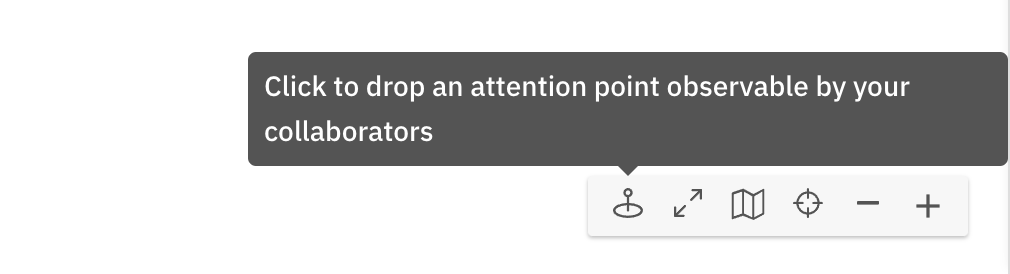
Switch on the attention grabber pointer from the canvas tools.
-
Drop the pointer by clicking anywhere on the canvas.
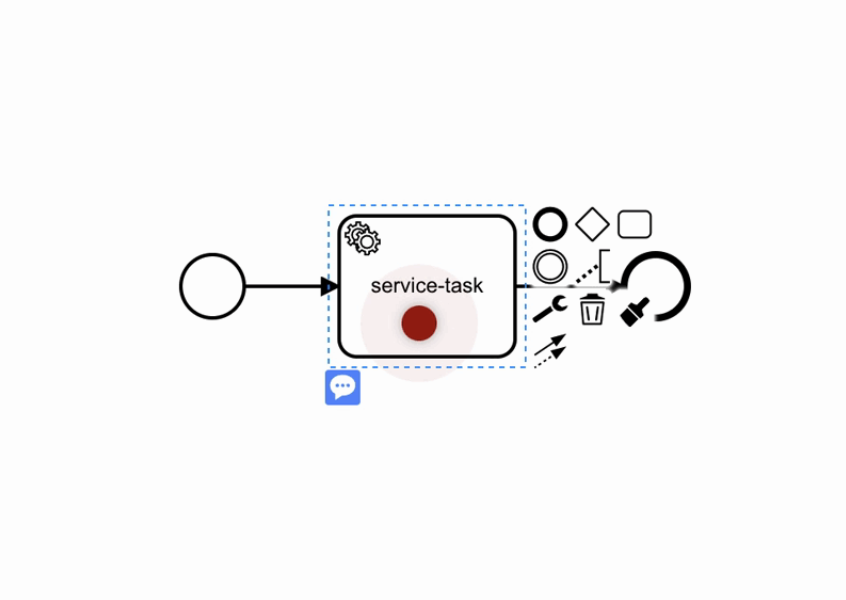
The pointer will pulsate to draw attention and will match your avatar color. It can also be seen in real-time by others that are looking at the same diagram as you.