Project development lifecycle
You can use Web Modeler to quickly develop project releases through the stages of a typical development lifecycle.
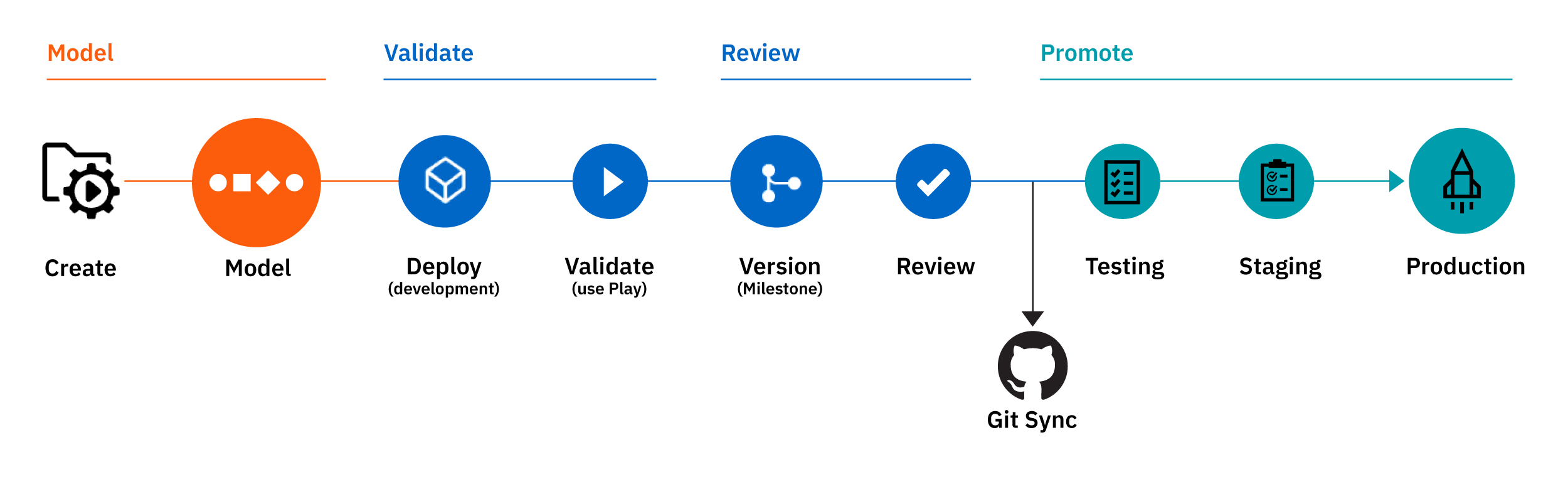
For business-critical and higher-risk processes that require strict governance and/or quality requirements, you can integrate Web Modeler into your CI/CD pipelines.
Model
During the modeling stage, you will typically:
- Create a project and select a default development cluster to deploy to.
- Invite other users to collaborate on the project.
- Define and set up the clusters and deployment stages you will use in your development pipeline.
- Model your diagrams and associated resources, and fix errors shown in the modeler.
- Use token simulation to correct and optimize your process flow.
Deployment pipeline stages
You can use the provided Web Modeler deployment pipeline to manage your application process deployment. The deployment pipeline has four stages named Development, Testing, Staging, and Production.
| Stage | Description |
|---|---|
| Development | Use to create and test new software features and changes. |
| Testing | Use for quality checks, ensuring software meets defined standards before release. |
| Staging | Use for controlled testing where changes are validated before deployment to production. |
| Production | The live system with the latest software. Only administrators and organization owners can deploy to this stage. |
To define your deployment pipeline stages:
- Open the project homepage.
- Select Configure in the Connected clusters section to open the Define stages modal.
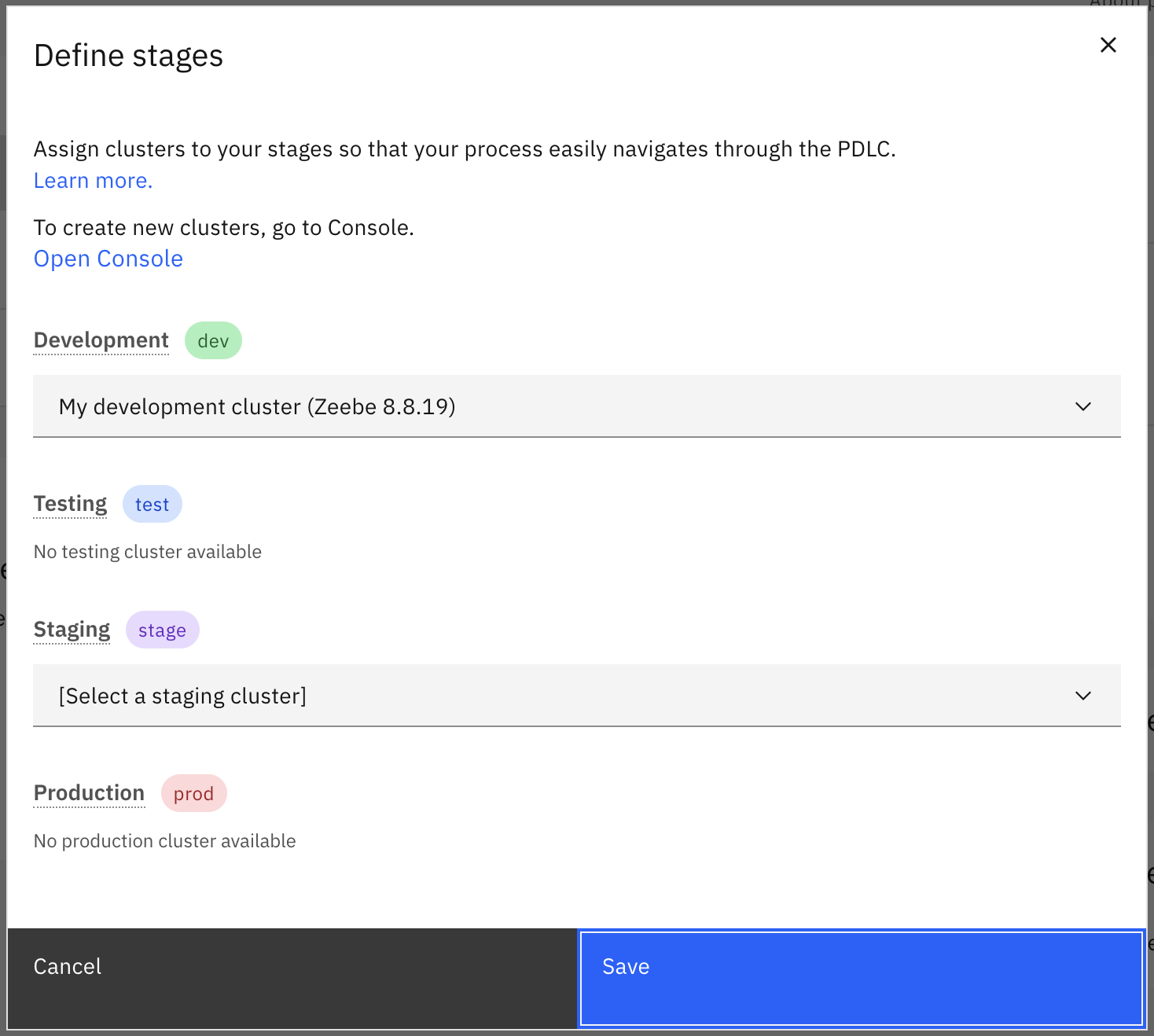
- Select and assign a cluster to each deployment stage that you want to use in your deployment pipeline.
- Select Save to save your changes and close the modal.
- An administrator must define the cluster to deploy to for each stage.
- During deployment, the next stage is not automatically selected. You must select the stage you want to promote to.
- You must select a cluster for at least one stage to be able to deploy. An Undefined stages warning is shown if no cluster is selected for at least one stage.
Validate
When your project is ready for validation you can deploy it to your development cluster.
- Use Play mode to quickly validate the process behavior and play different scenarios.
- Validate that all files and resources are correctly deployed.
Play is being rebuilt and progressively rolled out to more users. See Play limitations and availability for Play limitations and why you might not see the Play tab.
Review
After validation is complete, you can create a new version of your project and request a review:
- Use project versioning to create a version for all files in the project. You can compare versions to visually review changes between two versions of a BPMN file, or view code changes for other files.
- Request a review for the newest version of the project from the version history page of the project. Collaborators with edit permission in your project will see a notification on the process diagram page once you have requested a review.
- Reviewers can view the changes, comment, request changes, or approve the project version.
- After a user has submitted their review, the project version is marked as reviewed and the review status is shown in the version history.
- Any user with edit permissions can go back and edit the review at any point in time to update the assessment.
- If the reviewer has marked the version with "changes requested", you can address the feedback by performing the requested changes, creating a new version, and requesting a review for the new version.
This review capability is most useful for reviews on a business level. For technical reviews, you may instead use Git Sync to put changes into a technical context with related code changes.
To ensure proper evaluation, users (except organization administrators) cannot review versions they create.
Promote
After the review is complete, you can promote the versioned project to the next stage(s) of the deployment pipeline. For example, promote to your testing cluster/stage, then to staging, and finally to production.
If you want to use your own deployment pipeline after the review is complete, you can use Git Sync at this point to deploy and promote the project through your own pipeline.
Deployment policy
By default, only organization administrators can deploy projects to the prod tagged clusters.
Organization administrators can change this policy in the project deployment settings.
From these settings, you can enable non-admin users with deployment permissions to deploy projects to prod after a collaborator has approved the process app version using the project version review.
Process governance
The Web Modeler development lifecycle provides the following process governance:
| Governance | Description |
|---|---|
| Change control | Reviews cannot be performed by the user who created the project version unless the user is an organization administrator. Reviews can be edited. |
| Deployment control |
|