Add tools to an AI agent
Add BPMN elements as callable tools to your AI agents.
About
A tool is a single BPMN element, or a flow of BPMN elements, inside an ad-hoc sub-process that an LLM can choose to invoke to complete a goal. When a tool is a flow of several elements, only the root node is exposed to the LLM as a tool.
You can use any BPMN element or connector as a tool. See AI agent tool definitions for more details.
For this in the context of a running AI agent, see add your first tool.
Add an element inside the ad-hoc sub-process
- Open your process in Camunda Hub or Desktop Modeler.
- Click inside the ad-hoc sub-process to enter it.
- Add a new task element. You can use any BPMN element as a tool, including service tasks, script tasks, user tasks, and sub-processes.
- Apply the appropriate connector or task type. For example:
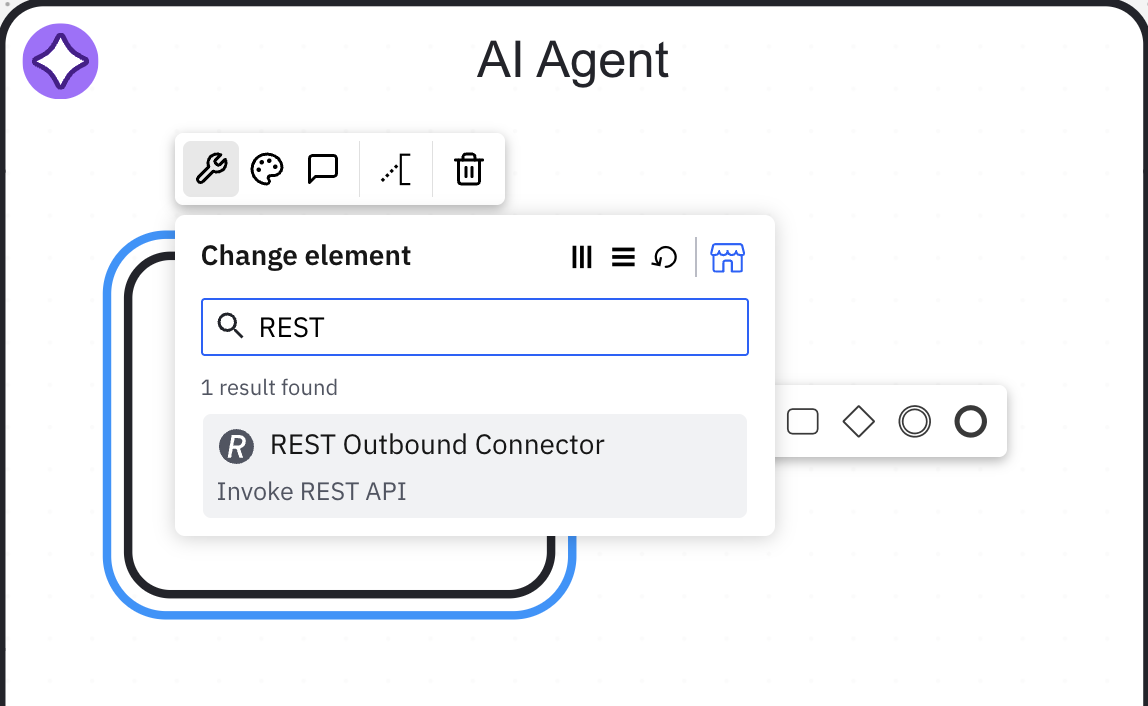
- Use the REST Outbound connector to call an external API.
- Use a user task to route to a human reviewer.
- Use a script task to execute inline logic.
- Make sure the element has no incoming sequence flow, as the AI Agent connector only resolves root-level elements as tools.
You can model a sub-flow inside the ad-hoc sub-process. Only the first element in the sub-flow (the root node) is exposed to the LLM as a tool; the rest of the flow executes automatically once the LLM selects it.
Write a tool name and description
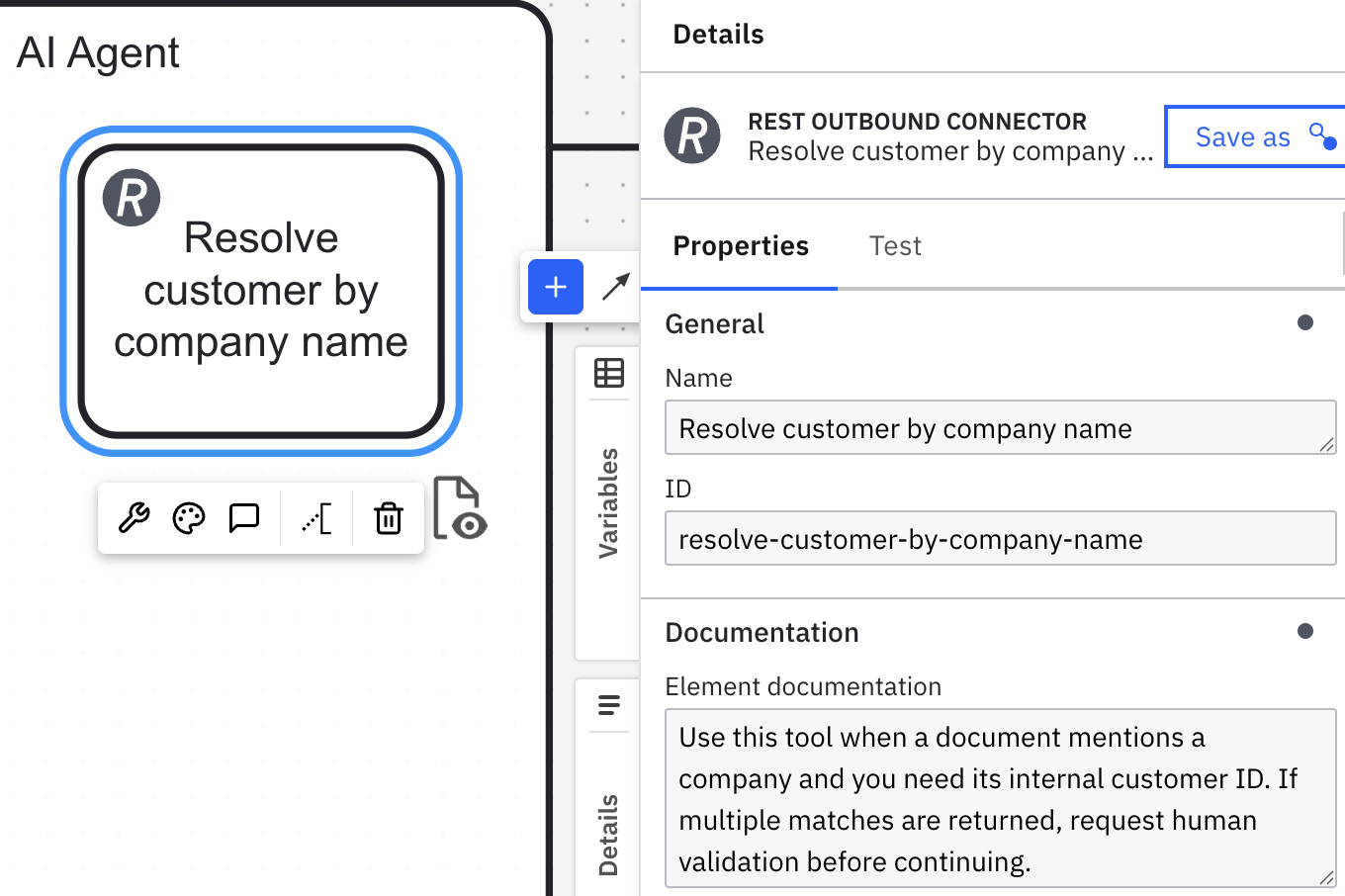
The LLM selects tools based on the tool element's ID and its Documentation fields:
- The element's ID field is always used as the tool name.
- The element's Name field is a human-readable label shown on the diagram.
- The element's Documentation field is used as the tool description.
The ID is used as the tool name instead of the Name field because element IDs are unique within a process, which gives the LLM an unambiguous identifier to reference when it calls the tool. The Name field is free-form text for readers of the diagram and can repeat across elements, so it only acts as a fallback description when Documentation is empty.
See tool definitions for more details.
Clear, specific descriptions significantly improve the reliability of tool selection.
- Give the element a descriptive ID, since this is what the LLM receives as the tool name.
- Give the element a descriptive Name. Since this is used as a fallback description when Documentation is empty, keep it meaningful even though it's primarily a diagram label.
- Open the Documentation field in the properties panel and write a description that explains:
- What the tool does.
- When the LLM should use it.
- When it should not, especially if two tools have overlapping purposes.
- Any constraints or expected inputs.
Modeler provides modeling guidance that flags tools with missing or empty documentation as you model.
Example: weak vs. strong description
A precise description makes the expected behavior explicit and reduces the risk of incorrect tool selection, repeated calls, or hallucinated behavior. Vague descriptions are the most common cause of unreliable agent behavior.
See the following comparison:
| Tool name | Documentation | |
|---|---|---|
| Weak | Lookup | Find customer data |
| Strong | Resolve customer by company name | Use this tool when a document mentions a company and you need its internal customer ID. If multiple matches are returned, request human validation before continuing. |
Declare AI-generated parameters with fromAi()
If the tool requires values that the LLM should supply at runtime, such as a search query, a location, or an identifier, wrap those values in the fromAi() FEEL function. The function returns the value unchanged at runtime, but it registers the parameter in the tool's input schema so the LLM knows it must generate a value.
Where you write the fromAi() call depends on whether the tool element has an element template applied:
- An element with an element template applied, such as a connector task, exposes the template's own input fields. Write
fromAi()directly in those fields. - An element without an element template, such as a plain service, script, or user task, exposes an Input mapping section instead. Write
fromAi()in an input mapping entry.
Both approaches produce the same tool input schema, because the AI Agent connector treats element template fields as input mappings.
- Element template fields
- Input mappings
Use this approach for an element with an element template applied, such as a connector task.
-
Select the tool element and find the template field whose value the LLM should supply. For example, the REST outbound connector exposes a URL field in its HTTP Endpoint section, plus Query parameters and Request body fields.
-
Set the field to a FEEL expression and wrap the value in
fromAi(), referencing the parameter as a field of thetoolCallcontext. For example, in the URL field:fromAi(toolCall.url, "The URL to fetch. Must be a valid HTTP(s) URL.") -
Repeat for each field the LLM should supply. A single field can also declare several parameters. For example, in the Query parameters field:
{
  latitude: fromAi(toolCall.latitude, "The latitude of the location.", "number"),
  longitude: fromAi(toolCall.longitude, "The longitude of the location.", "number")
}
You don't need an additional input mapping entry for these fields. The AI Agent connector handles element template fields as input mappings, so it picks up the fromAi() calls written directly in them.
Use this approach for an element without an element template, such as a plain service, script, or user task.
- Select the tool element and open the Input mapping section in the properties panel.
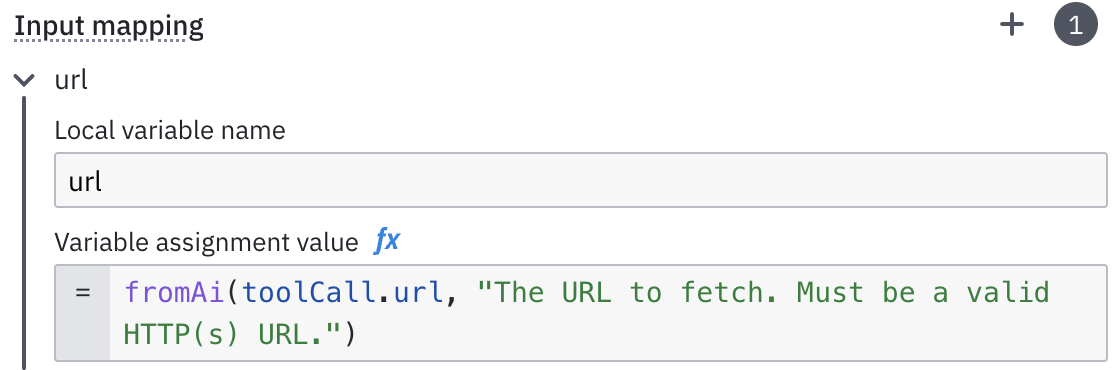
- Add a new entry and set its Local variable name. This is the name you use to reference the value elsewhere in the element, for example in a script task's FEEL expression.
- Set the Variable assignment value to a
fromAi()call, referencing the parameter as a field of thetoolCallcontext. - Repeat for each value the LLM should supply.
For example, to let the LLM supply the URL a task should call:
| Local variable name | Variable assignment value |
|---|---|
url | =fromAi(toolCall.url, "The URL to fetch. Must be a valid HTTP(s) URL.") |
Whichever approach you use, the following applies:
- The first argument must be a reference to a field of the
toolCallcontext, such astoolCall.url. The AI Agent connector populates this context with the LLM-generated values. - The parameter name the LLM sees is the last segment of that reference,
urlin the previous examples, not the Local variable name or the template field name. - The AI Agent connector collects every
fromAi()call in the element and combines them into one input schema for the tool.
See AI-generated parameters via fromAi for more details, including parameter types, optional parameters, and JSON Schema constraints.
While modeling, you'll receive guidance that flags malformed fromAi() calls. When modeling in Camunda Hub, you can also autofill a starter fromAi() call into a blank input.
Return the result as toolCallResult
After the tool executes, its output must be returned in a process variable named toolCallResult so the AI Agent connector can pass it back to the LLM.
At runtime, each tool call produces one toolCallResult. The ad-hoc sub-process's multi-instance output collection aggregates these into toolCallResults, which the AI Agent connector reads to build the LLM's response.
While modeling, you'll receive guidance that flags tools that do not set a result or set it under the wrong variable name.
When modeling in Camunda Hub, you can also autofill the toolCallResult output.
How you set toolCallResult depends on the BPMN element type that implements your tool. For example, a connector task exposes a dedicated result expression field, a regular task uses output mappings, and a script task uses a dedicated result variable. Use the approach that matches your tool's element type:
- Connector task
- Regular task
- Script task
In the Output mapping section of a connector, set Result Expression to map relevant response fields into toolCallResult:
{
  toolCallResult: {
    temperature_celsius: response.body.current.temperature_2m,
    wind_speed_kmh: response.body.current.wind_speed_10m,
    weather_code: response.body.current.weather_code
  }
}
In the Output mapping section, add an output mapping with toolCallResult as the process variable name:
| Variable assignment value | Process variable name |
|---|---|
= response.body | toolCallResult |
Set the script task's Result variable to toolCallResult. The FEEL expression provides the value that is assigned to it:
{ status: "completed", id: customerId }
Combine multiple outputs into a single toolCallResult
When your tool produces several values that each contribute a field to toolCallResult, do not add one output mapping per field targeting toolCallResult.<field>:
- Output mappings and result variables containing a period are discouraged. See output mappings.
- Mapping to
toolCallResultdirectly replaces the entire variable, so several mappings targeting it overwrite each other.
Whether you can add fields to toolCallResult one at a time depends on the element type. Use the approach that matches your tool's element type:
- Connector task
- Regular task
- Script task
A connector task cannot add fields one at a time. A connector Result Expression has no access to process variables, so it cannot read the current value of toolCallResult.
Build the complete result in a single Result expression instead:
{
  toolCallResult: {
    status: response.status,
    body: response.body
  }
}
A regular task, such as a user task, can add fields one at a time. Use the context put() FEEL function to add a single key to the existing toolCallResult context without replacing it.
Write the call as the Variable assignment value of a mapping whose Process variable name is toolCallResult:
| Variable assignment value | Process variable name |
|---|---|
=context put(toolCallResult, "status", response.body.status) | toolCallResult |
A script task can add fields one at a time. Use the context put() FEEL function to add a single key to the existing toolCallResult context without replacing it.
Write the call directly in the script task's FEEL expression in the Script section:
context put(toolCallResult, "status", response.body.status)
The toolCallResult value can be a primitive string, a number, or a complex FEEL context object. Complex objects are serialized to JSON before being passed to the LLM. Prefer returning a structured FEEL context over a raw string when the result has multiple fields, as this gives the LLM more to work with when summarizing the outcome. If toolCallResult is not set or is empty after the tool executes, the AI Agent connector returns a constant success string to the LLM.
Example
The following ad-hoc sub-process asks a human to approve sending an email, then sends the email or records the decline depending on the response:
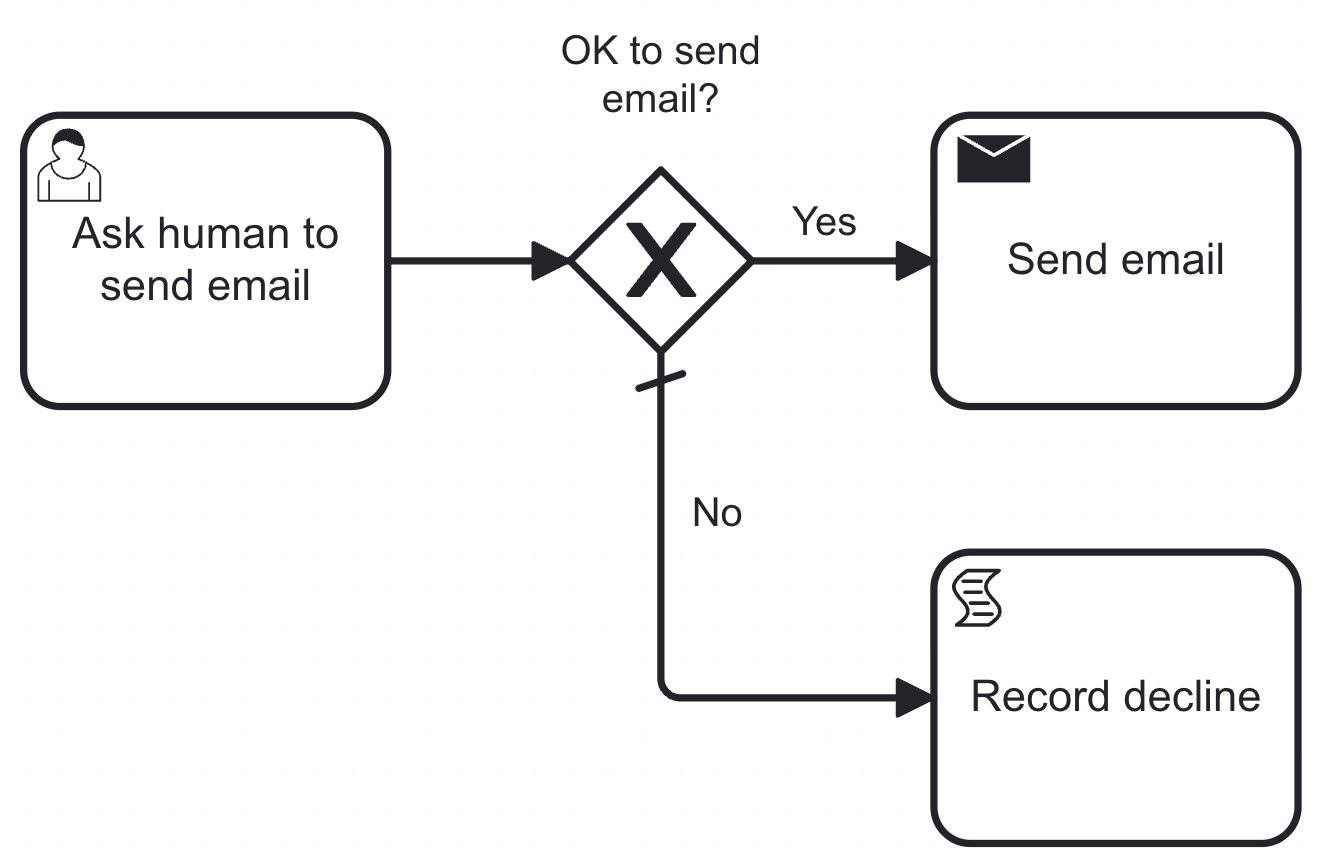
All BPMN elements belong to the same tool flow. Only Ask human to send email is exposed to the LLM as the tool, as described in add an element inside the ad-hoc sub-process.
Each element in the flow updates toolCallResult as the process instance evolves:
-
Ask human to send email is a user task and the first element in the flow, so it assigns
toolCallResultdirectly through an output mapping:Variable assignment value Process variable name = { approved: true }toolCallResultThe gateway then routes the process instance based on the
approvedfield. -
Send email is a regular task. It adds a
sentfield to the existingtoolCallResultwith an output mapping, instead of overwriting it:Variable assignment value Process variable name =context put(toolCallResult, "sent", true)toolCallResult -
Record decline is a script task. It adds
sent: falsedirectly in its FEEL expression:context put(toolCallResult, "sent", false)
The following table shows how toolCallResult accumulates fields as the process instance progresses through each branch:
| Step | If approved | If declined |
|---|---|---|
| After Ask human to send email | { approved: true } | { approved: false } |
| After Send email / Record decline | { approved: true, sent: true } | { approved: false, sent: false } |
By the time the ad-hoc sub-process completes, toolCallResult is a single structured object with the full history of the tool call, which the AI Agent connector passes back to the LLM.