Agent tool output key
Tools within an AI Agent sub-process return their results to the agent through the toolCallResult variable. The rule reports one warning per tool in either of the following situations:
- Misdirected result: The tool sets result variables, but none of them is named
toolCallResult, for example, because of a typo such astoolCalResult. The rule reports the warning on the element that set the wrong variable, which can be downstream of the tool's entry element. - No result: No element in the tool's flow sets a result variable. The rule reports the warning on the tool's entry element, because no single element is at fault. Even a fire-and-forget tool should report its completion, for example, with
= "Email sent.".
How a tool can set toolCallResult
The result can be set anywhere in the tool's flow through several channels:
- Output mapping: Target
toolCallResultor one of its fields, such astoolCallResult.statusCode. - Connectors: Use the Result variable or Result expression field, for example,
= { toolCallResult: response.body }. This is the only available channel because connectors cannot read process variables. - Script tasks and business rule tasks: Set the Result variable to
toolCallResult.
Avoid overwrites when several elements contribute
Assigning a value to toolCallResult twice overwrites the first value:
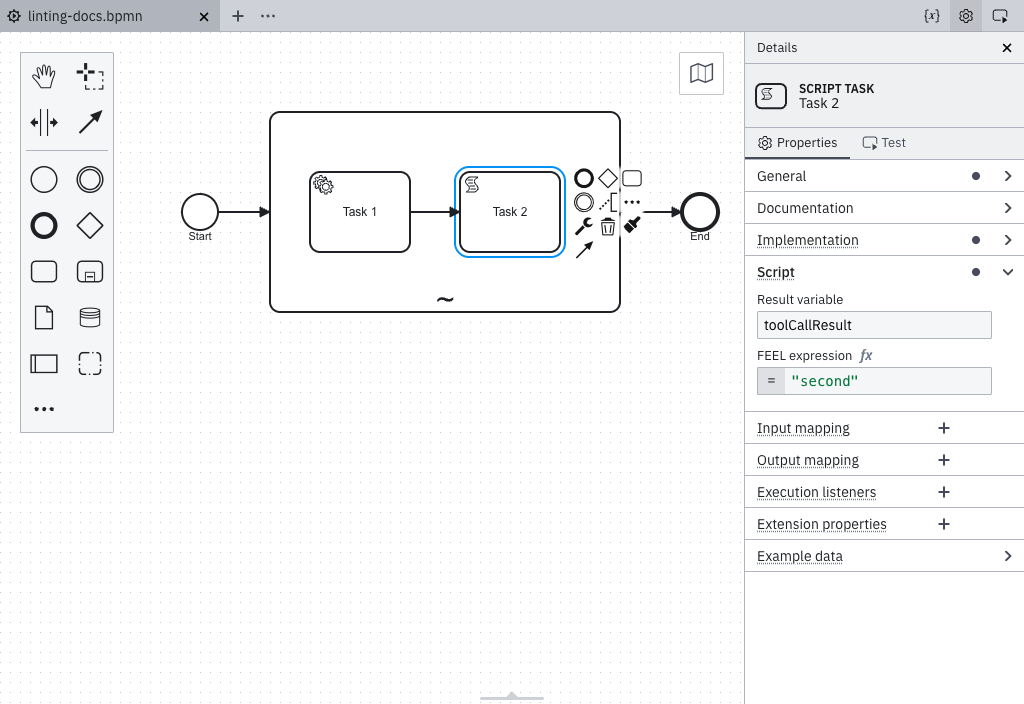
To add a field without overwriting the existing value, use context put() in an output mapping:
= context put(toolCallResult, "confirmation", sendResult)
This works only for elements that run in the workflow engine. Connector result expressions cannot read the current value of toolCallResult, so a connector tool must build its complete result in a single expression.
What the rule cannot see
Results written by arbitrary FEEL expressions elsewhere, such as a variable set by a called process, cannot be detected statically. Ignore the warning or make the result wiring explicit with an output mapping.
Overwrite detection is also skipped for any tool flow that branches, for example a gateway split, a join, or a boundary event, even when the branches are guaranteed to converge before the next write. Review these flows manually for overwrites.
The result variable name
This rule always checks for toolCallResult, the default used by the AI Agent connector. An AI Agent Task's multi-instance ad-hoc sub-process can rename this variable by changing the multi-instance Output element value. If you rename it, ignore the warning for that tool.
Result never reaches the agent
The tool maps its output to result instead of toolCallResult, or no element in its flow sets a result at all.
toolCallResult set on an element in the tool flow
An output mapping targets toolCallResult or one of its fields, such as toolCallResult.statusCode; a connector result expression contains a toolCallResult key; or a script task's result variable is toolCallResult.
Declare a sub-process as agentic
This rule applies only within an ad-hoc sub-process recognized as a tool container. An ad-hoc sub-process is recognized as a tool container in any of the following ways:
- Its
zeebe:modelerTemplateattribute is set toio.camunda.connectors.agenticai.aiagent.jobworker.v1, which identifies the AI Agent Sub-Process template. Any version of this template is supported. - It has a
zeebe:propertynamedio.camunda.agenticai.toolContainerwith the valuetrue, regardless of whether its tools are invoked by an AI Agent Task in the same process or in a separate process. This property is the supported long-term approach. - Its
zeebe:taskDefinitiontype starts withio.camunda.agenticai:aiagent-job-worker:, which is the type assigned by the AI Agent Sub-Process template. This covers custom element templates that use a differentzeebe:modelerTemplateID but assign the same type, such as an agent template published within your organization.
Every Camunda-provided AI Agent element template sets the io.camunda.agenticai.toolContainer property.
The property is available across all template versions. Templates declare it as a hidden property, so it never appears as a control in the properties panel.
An element template writes its properties into the diagram only when you apply it, so an ad-hoc sub-process you modeled before the property was added keeps its original XML. Existing processes need to be updated.
Update an existing process
While an element template is applied, the properties panel shows only the sections the template defines, and the Extension properties section isn't available.
If a newer version of the template is available, update the ad-hoc sub-process to that version. Updating writes io.camunda.agenticai.toolContainer into the diagram.
If no newer version is available, unlink and reapply the template instead:
- Select the ad-hoc sub-process and unlink the element template. Unlinking keeps the properties you already configured.
- Apply the same element template again. Reapplying writes
io.camunda.agenticai.toolContainerinto the diagram.
If the ad-hoc sub-process has no element template applied, add the property manually. Select the sub-process, open the Extension properties section in the properties panel, and add a property named io.camunda.agenticai.toolContainer with the value true:
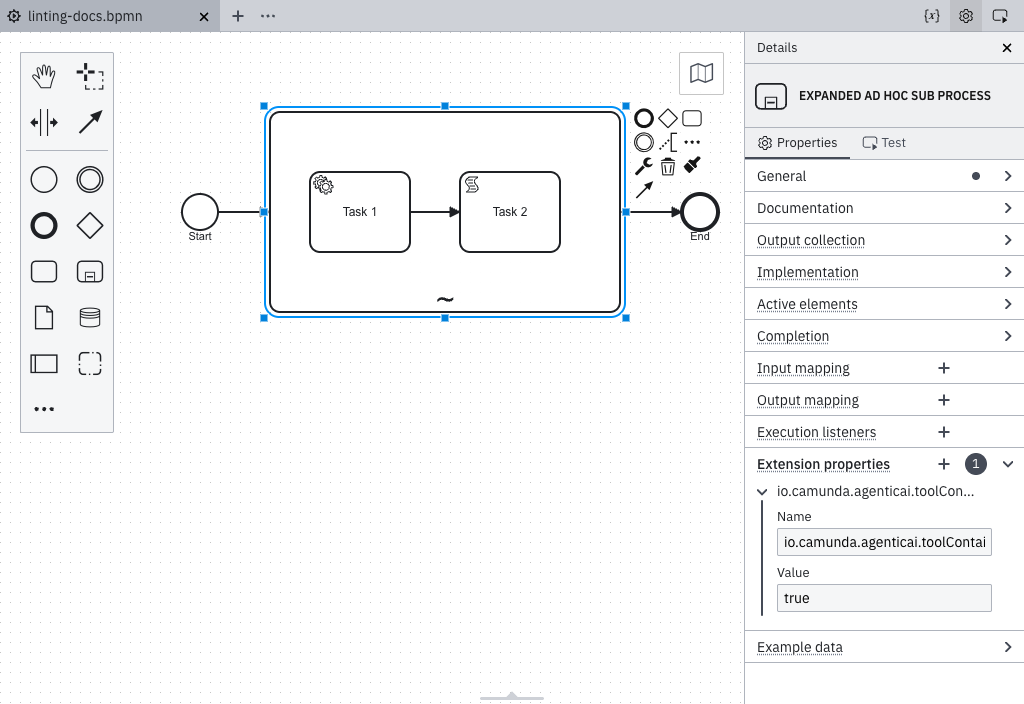
In the XML, the property appears as follows:
<bpmn:adHocSubProcess id="Tools">
  <bpmn:extensionElements>
    <zeebe:properties>
      <zeebe:property name="io.camunda.agenticai.toolContainer" value="true" />
    </zeebe:properties>
  </bpmn:extensionElements>
</bpmn:adHocSubProcess>