Agent fromAi() contract
The fromAi() FEEL function declares a tool's LLM-supplied inputs within an AI Agent sub-process. A malformed call resolves to nothing at runtime without producing an error, so malformed calls are reported as errors. A call without a description is valid and is not reported.
Contract breaks
The rule reports the following problems:
- Key is not a FEEL path: The first argument must be a path expression, such as
toolCall.url, rather than a string literal, number,null, bracket notation, or conditional expression. - Key does not start with
toolCall.: The connector populates only fields in thetoolCallcontext. - Key is nested: The connector uses only the last path segment as the parameter name. Use a single name, such as
toolCall.filter. - Key is declared twice in one tool: Duplicate keys collide because a tool's
fromAi()calls are combined into a single input schema. - Wrong function-name casing: The function name is case-sensitive. Use
fromAi. - Description is not a string literal: The description must be a quoted string, for example,
fromAi(toolCall.url, "The URL to fetch."). fromAi()is in the wrong place: The function is valid only in an input mapping on the tool's entry element. This is the activity with no incoming sequence flow. Anywhere else, it resolves tonull:
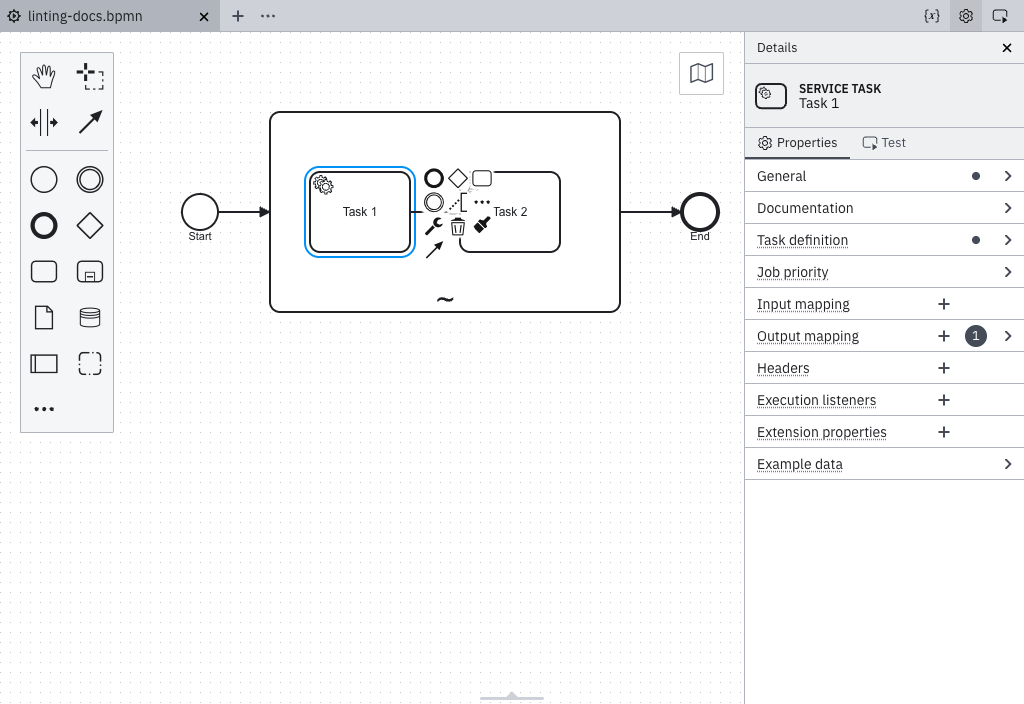
Correct fromAi() usage
Use a single-segment toolCall path with a description:
= fromAi(toolCall.url, "The URL to fetch. Must be an absolute URL including scheme.")
A fromAi() call within an ad-hoc sub-process that is not recognized as a tool container is also reported. If the tool is not intended to be agent-driven, remove the fromAi() call instead.
Declare a sub-process as agentic
This rule applies only within an ad-hoc sub-process recognized as a tool container. An ad-hoc sub-process is recognized as a tool container in any of the following ways:
- Its
zeebe:modelerTemplateattribute is set toio.camunda.connectors.agenticai.aiagent.jobworker.v1, which identifies the AI Agent Sub-Process template. Any version of this template is supported. - It has a
zeebe:propertynamedio.camunda.agenticai.toolContainerwith the valuetrue, regardless of whether its tools are invoked by an AI Agent Task in the same process or in a separate process. This property is the supported long-term approach. - Its
zeebe:taskDefinitiontype starts withio.camunda.agenticai:aiagent-job-worker:, which is the type assigned by the AI Agent Sub-Process template. This covers custom element templates that use a differentzeebe:modelerTemplateID but assign the same type, such as an agent template published within your organization.
Every Camunda-provided AI Agent element template sets the io.camunda.agenticai.toolContainer property.
The property is available across all template versions. Templates declare it as a hidden property, so it never appears as a control in the properties panel.
An element template writes its properties into the diagram only when you apply it, so an ad-hoc sub-process you modeled before the property was added keeps its original XML. Existing processes need to be updated.
Update an existing process
While an element template is applied, the properties panel shows only the sections the template defines, and the Extension properties section isn't available.
If a newer version of the template is available, update the ad-hoc sub-process to that version. Updating writes io.camunda.agenticai.toolContainer into the diagram.
If no newer version is available, unlink and reapply the template instead:
- Select the ad-hoc sub-process and unlink the element template. Unlinking keeps the properties you already configured.
- Apply the same element template again. Reapplying writes
io.camunda.agenticai.toolContainerinto the diagram.
If the ad-hoc sub-process has no element template applied, add the property manually. Select the sub-process, open the Extension properties section in the properties panel, and add a property named io.camunda.agenticai.toolContainer with the value true:
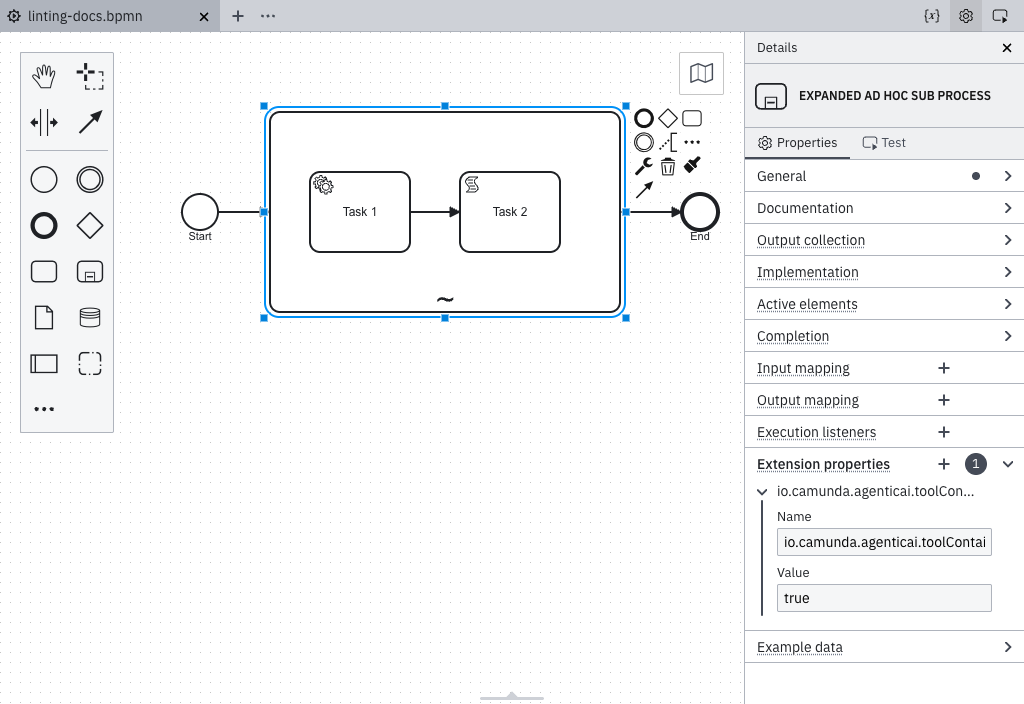
In the XML, the property appears as follows:
<bpmn:adHocSubProcess id="Tools">
  <bpmn:extensionElements>
    <zeebe:properties>
      <zeebe:property name="io.camunda.agenticai.toolContainer" value="true" />
    </zeebe:properties>
  </bpmn:extensionElements>
</bpmn:adHocSubProcess>
Clicking a tool container report in the Problems panel selects the tool task rather than the ad-hoc sub-process, and the Problems panel does not navigate to the sub-process for you. Select the sub-process directly in the diagram to apply either fix.