Amazon SQS outbound connector
Use the Amazon SQS outbound connector to send messages to a queue in Amazon Simple Queue Service (Amazon SQS) from your BPMN process.
About this connector
The Amazon SQS outbound connector sends a message to a standard or FIFO queue and returns the SQS message identifier of the new message.
To start or continue a process when a message arrives in a queue, use the Amazon SQS inbound connector.
Prerequisites
To use the Amazon SQS outbound connector, you need an SQS queue and AWS credentials with the sqs:SendMessage permission for that queue. Provide the credentials as an IAM access key and secret key pair or, in Hybrid and Self-Managed setups, through the default credentials chain. Learn more in the SQS Developer Guide.
Use secrets to avoid exposing your AWS IAM credentials as plain text. See managing secrets.
Create an Amazon SQS outbound connector task
You can apply a connector to a task or event via the append menu. For example:
- From the canvas: Select an element and click the Change element icon to change an existing element, or use the append feature to add a new element to the diagram.
- From the properties panel: Navigate to the Template section and click Select.
- From the side palette: Click the Create element icon.
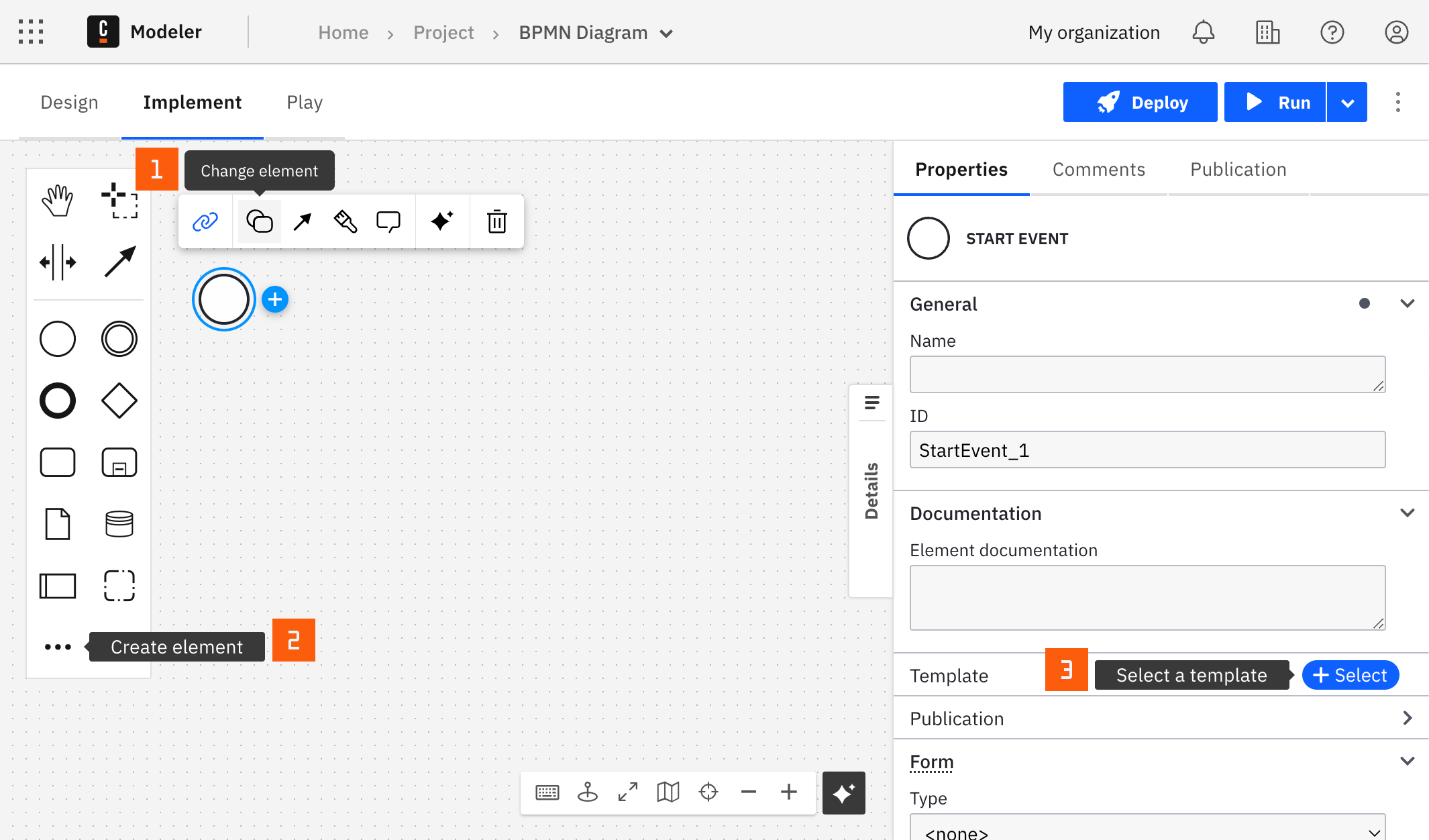
After you have applied a connector to your element, follow the configuration steps or see using connectors to learn more.
Configuration
Authentication
| Property | Type | Required | Description | Example |
|---|---|---|---|---|
| Authentication | Dropdown | Yes | The AWS authentication strategy:
| |
| Access key | String | Yes, if Authentication is Credentials | The access key of an IAM user with permission to send messages to the queue. | {{secrets.MY_AWS_ACCESS_KEY}} |
| Secret key | String | Yes, if Authentication is Credentials | The secret key of the IAM user with the access key above. |
Queue properties
| Property | Type | Required | Description | Example |
|---|---|---|---|---|
| URL | String | Yes | The URL of the SQS queue to send the message to. | |
| Queue type | Dropdown | Yes | Whether the queue is a standard or a FIFO queue: Standard or FIFO. The default is Standard. | |
| Region | String | Yes | The AWS region of the queue. | us-east-1 |
Operations
Send message
Send a message to an Amazon SQS queue.
Input parameters
| Property | Type | Required | Description | Example |
|---|---|---|---|---|
| Message body | Text | Yes | The data to send to the queue. The field requires a FEEL expression. | |
| Message attributes | Text | No | Optional message metadata, as a FEEL map keyed by attribute name. Each value contains a StringValue and a DataType. See message attributes. | |
| Message group ID | String | Yes, for FIFO queues | The message group ID of the message. Shown when Queue type is FIFO. | |
| Message deduplication ID | String | No, for FIFO queues | The message deduplication ID of the message. Shown when Queue type is FIFO. Whether you need it depends on how you configured message deduplication for the queue. |
To learn more about Friendly Enough Expression Language (FEEL) expressions, see what is FEEL?.
Message attributes
Amazon SQS lets you include structured metadata, such as timestamps, geospatial data, signatures, and identifiers, with messages using message attributes. The connector supports non-binary message attributes. Compose the value to comply with the Amazon SQS message attribute data format.
Example of valid message attributes as a FEEL value:
= {
  "timestamp":{
    "StringValue":today(),
    "DataType":"String"
  },
  "messageSubmittedBy":{
    "StringValue":"user12345",
    "DataType":"String"
  }
}
Output
The connector returns the SQS message identifier of the new message in a messageId field.
Example response:
{
  "messageId": "5fea7756-0ea4-451a-a703-a558b933e274"
}
To use the message identifier in your process, map it with a Result expression, for example:
= {
  "createdMessageID": response.messageId
}
Troubleshooting
To learn about general error handling in Camunda, see BPMN errors and failing jobs.