Integrate IDP into your processes
Integrate your published document extraction templates into your end-to-end processes in Web Modeler.
New to IDP integration? See the example IDP integration for a worked example of a simple IDP process.
Create and configure an IDP task
You can apply a published document extraction template to a task or event via the append menu. For example:
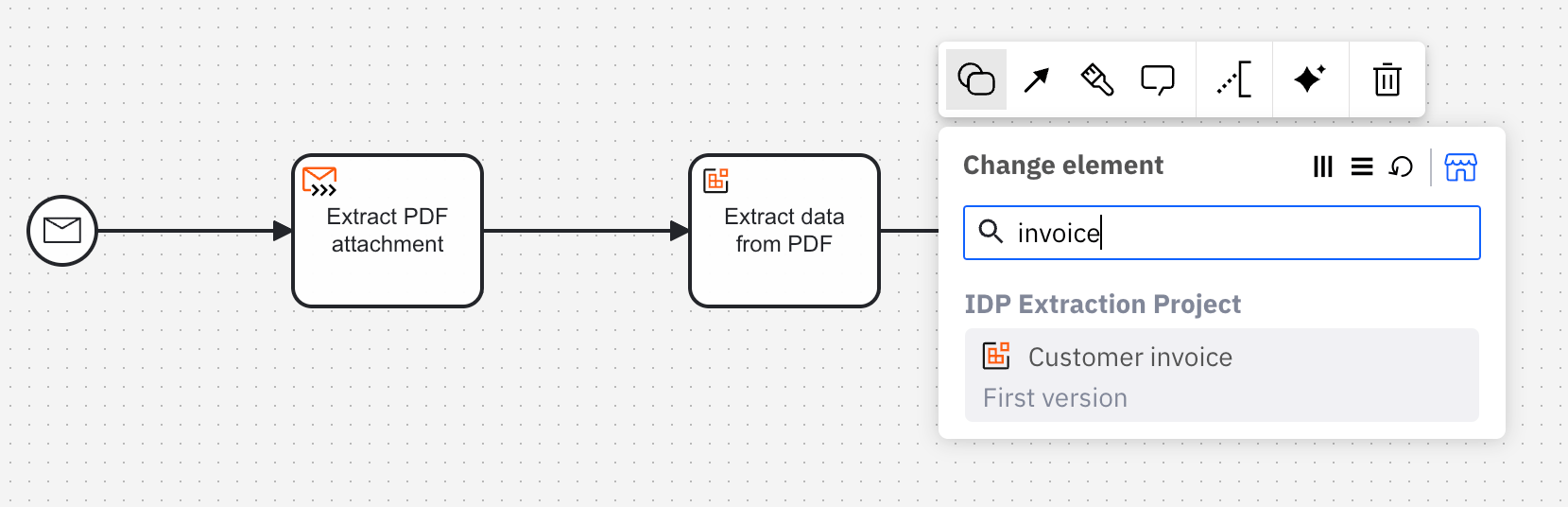
- From the canvas: Select an element and click the Change element icon to change an existing element, or use the append feature to add a new element to the diagram.
- From the properties panel: Navigate to the Template section and click Select.
- From the side palette: Click the Create element icon.
You can then configure the document extraction template in the properties panel, via the following sections:
Input message data
Document
Specify the document object variable used for document handling, provided as a FEEL expression with the document reference.
For example, if you have uploaded a document via form upload using a documents Key, you can specify documents[1] to retrieve the first document in the array.
Example: documents[1].
To learn more about storing, tracking, and managing documents in Camunda 8, see document handling.
Provider authentication
Authentication
Ensure the Credentials AWS authentication type is selected.
Access key
Specify your AWS access key connector secret, provided as a FEEL expression.
Example: {{secrets.IDP_AWS_ACCESSKEY}}
Secret key
Specify your AWS secret access key connector secret, provided as a FEEL expression.
Example: {{secrets.IDP_AWS_SECRETKEY}}
Provider configuration
AWS S3 Bucket name
Specify the name of the Amazon S3 bucket where documents can be temporarily stored during Amazon Textract analysis as a connector secret, provided as a FEEL expression.
Example: {{secrets.IDP_AWS_BUCKET_NAME}} (for the Amazon S3 bucket used for document storage during extraction).
The Amazon S3 bucket name must be unique across all your AWS accounts.
Region
Specify the region where documents can be temporarily stored during Amazon Textract analysis as a connector secret, provided as a FEEL expression. This should match the region where the AWS S3 bucket is located. The default region is us-east-1.
Example: {{secrets.IDP_AWS_REGION}}
Output mapping
Specify the process variables that you want to map and export the IDP extraction connector response into.
To learn more about output mapping, see variable/response mapping.
Result variable
You can export the complete IDP extraction connector response (for example, the key value pairs extracted from the document) into a dedicated variable that you can then access anywhere in a process. To do this, enter a unique dedicated variable name in the Result variable field.
Example: IDPResult
Result expression
In addition, you can choose to unpack the content of the response into multiple process variables using the Result expression field, as a FEEL Context Expression.
Error handling
If an error occurs, the IDP extraction connector throws an error and includes the error response in the error variable in Operate.
Error expression
You can handle an IDP extraction connector error using an Error Boundary Event and error expressions.
Retries
Retries
Specify the number of retries (times) the IDP extraction connector repeats execution if it fails.
Retry backoff
Specify a custom Retry backoff interval between retries instead of the default behavior of retrying immediately.
Execution listeners
Add and manage execution listeners to allow users to react to events in the workflow execution lifecycle by executing custom logic.